Your phone makes a surprisingly good Roku remote. It never runs out of batteries, it has a real keyboard for searches and passwords, and it's already in your hand. Here's how to set it up properly the first time — on Android or iPhone, with any Roku.
What you need
- A Roku TV (TCL, Hisense, onn., Sharp, Philips and others) or a Roku player — Express, Streaming Stick, Ultra or Streambar
- An Android phone or iPhone on the same home Wi-Fi network as the Roku (not a guest network)
- A Roku remote app, such as the official Roku app or our Roku TV Remote
Step 1: turn on mobile control on your Roku
Newer Roku software has a setting that decides whether apps on your network may send remote commands. If it's set to Limited or Disabled, a phone remote can see your Roku but its buttons do nothing — the #1 cause of “the app connects but nothing happens”.
Go to SettingsSystemAdvanced system settingsControl by mobile appsNetwork access and choose Enabled (older Roku software calls it Default). The remote app walks you through it on your phone, screen by screen:
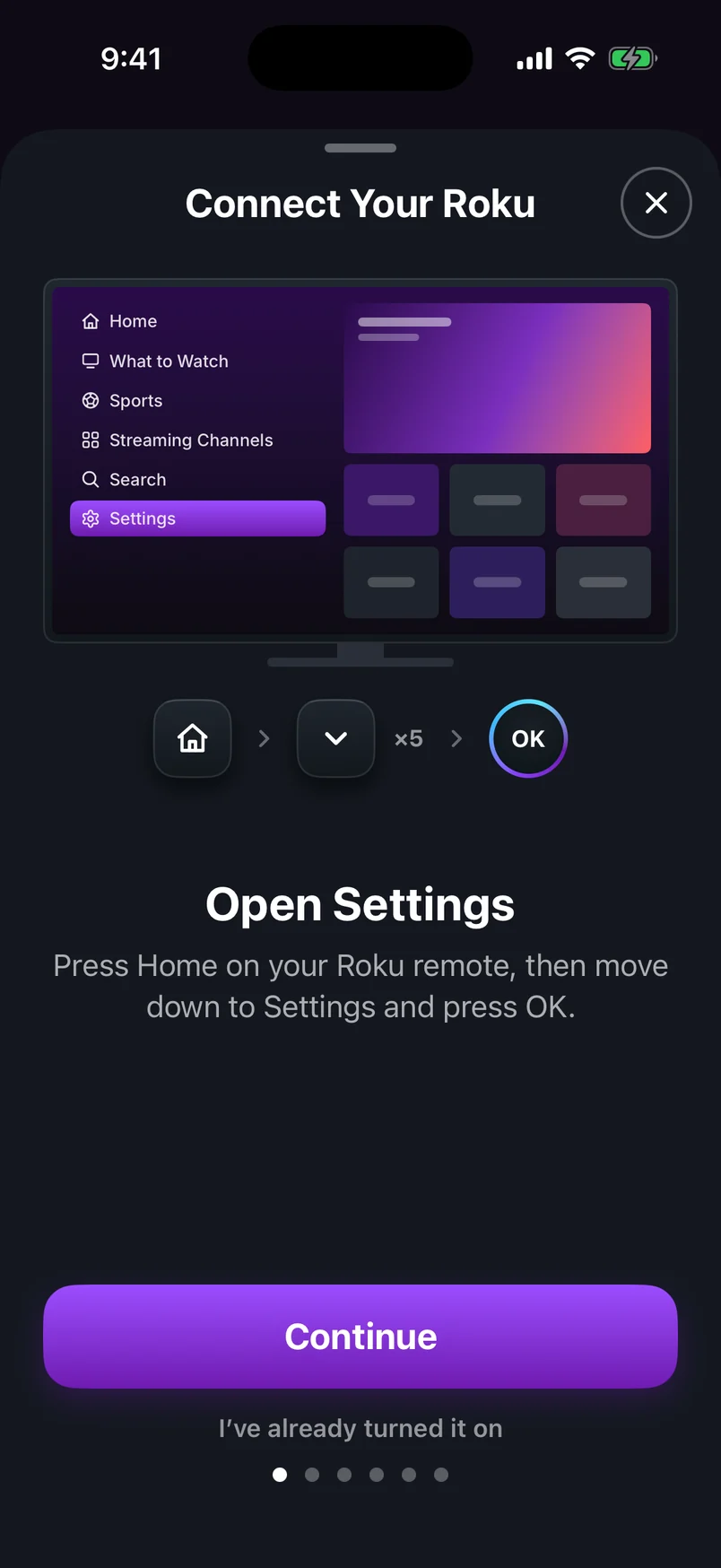
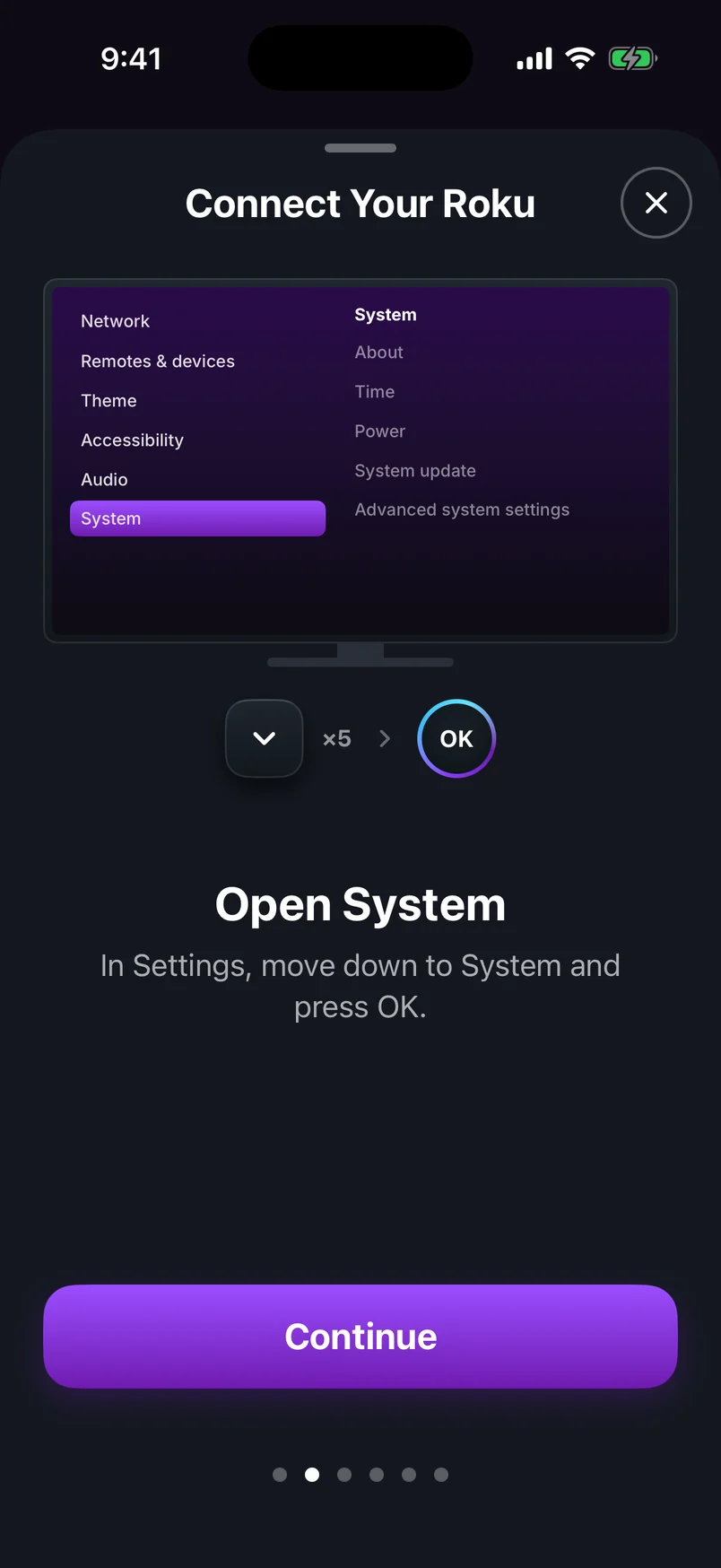
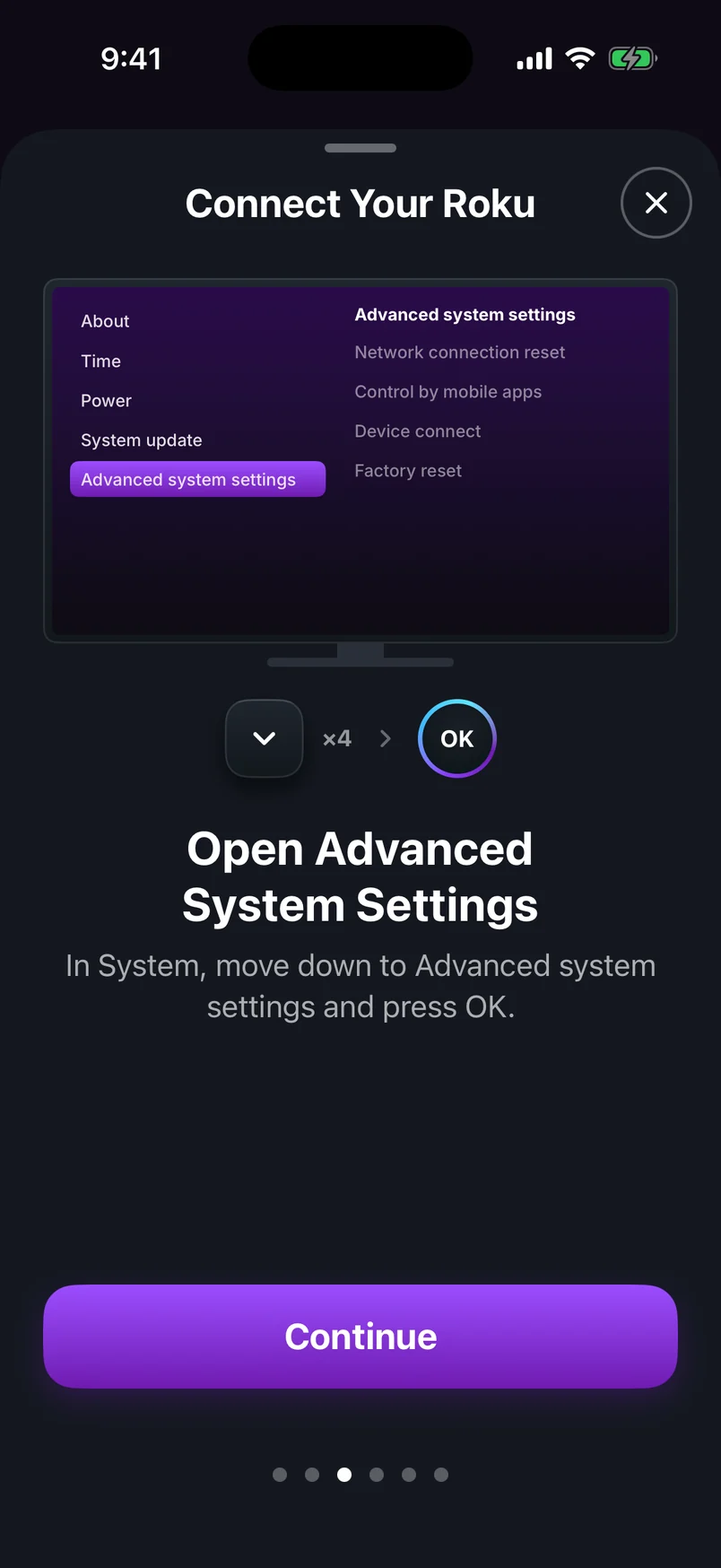
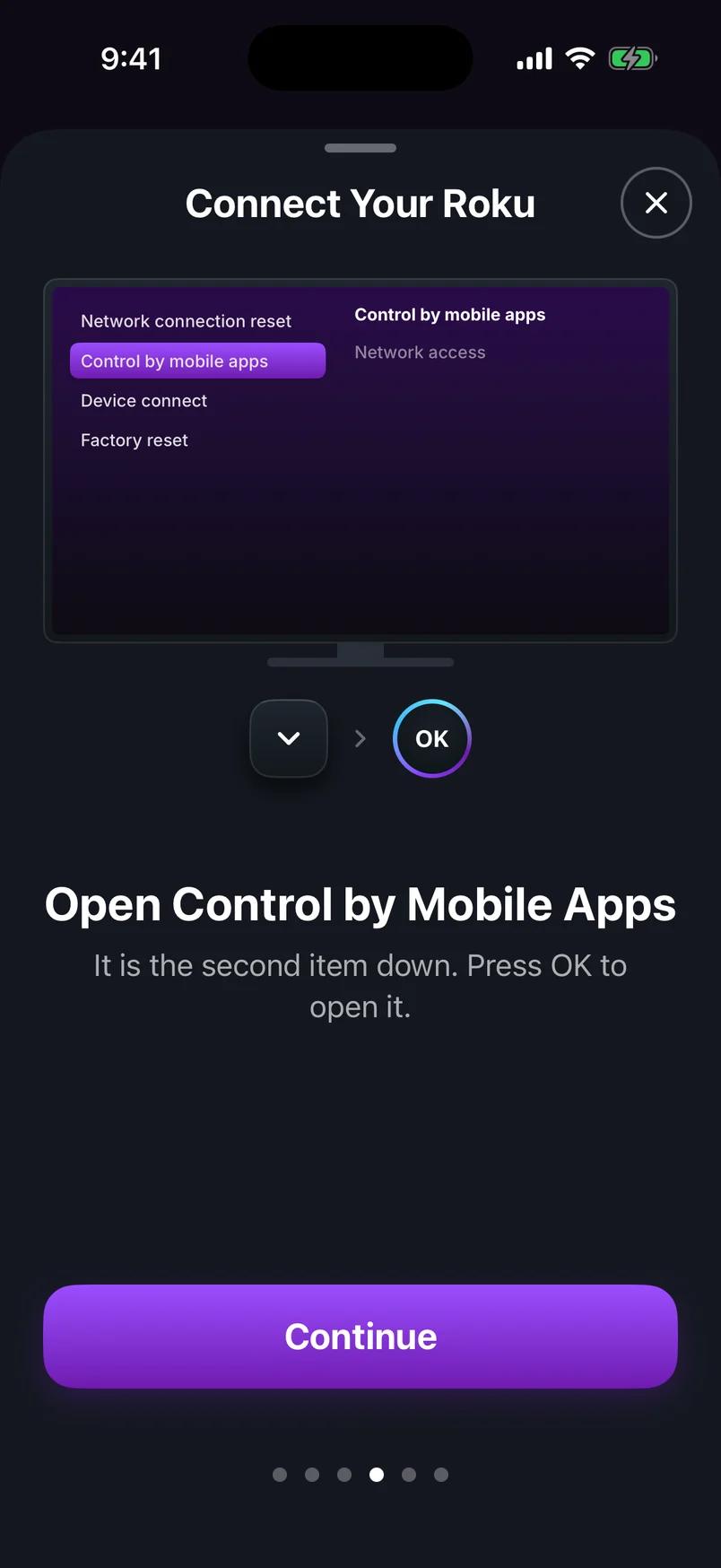
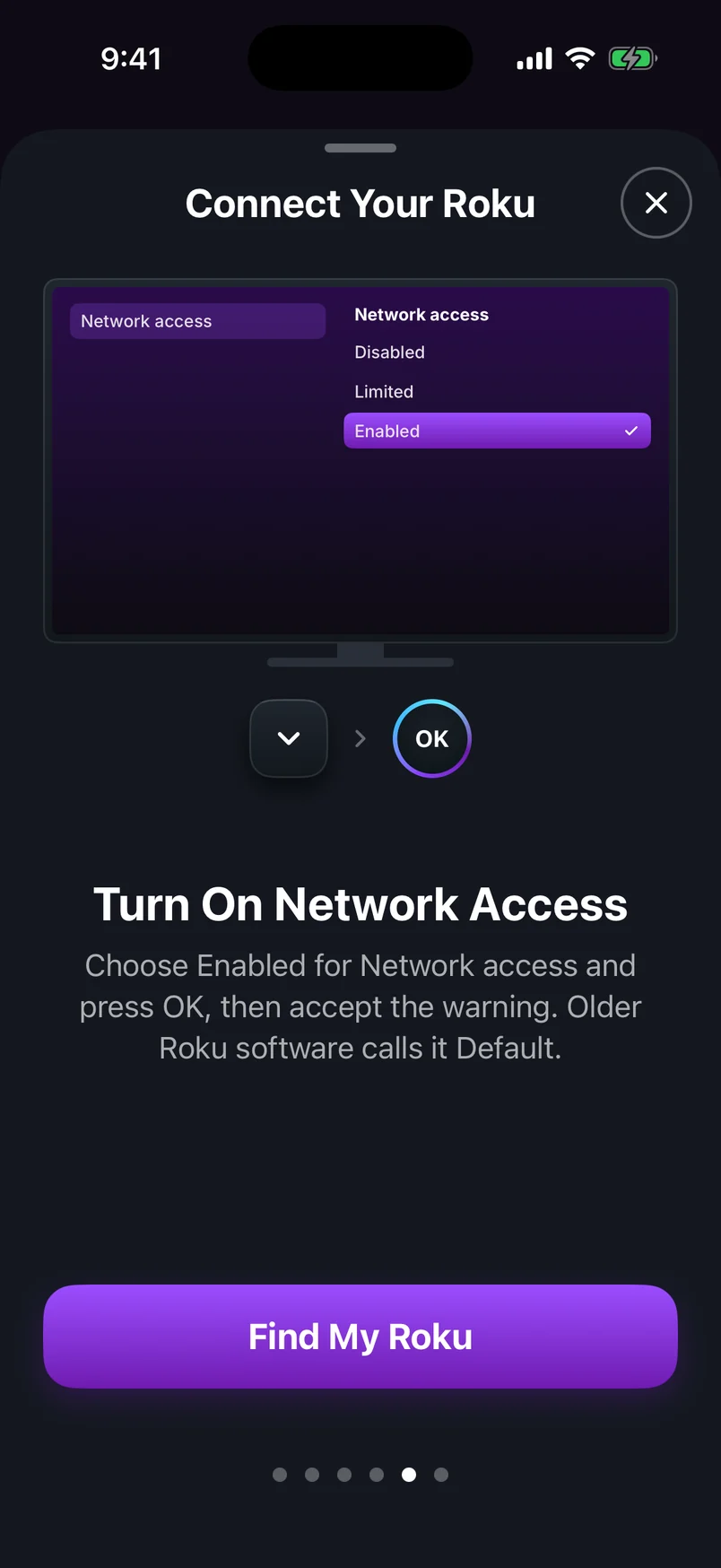
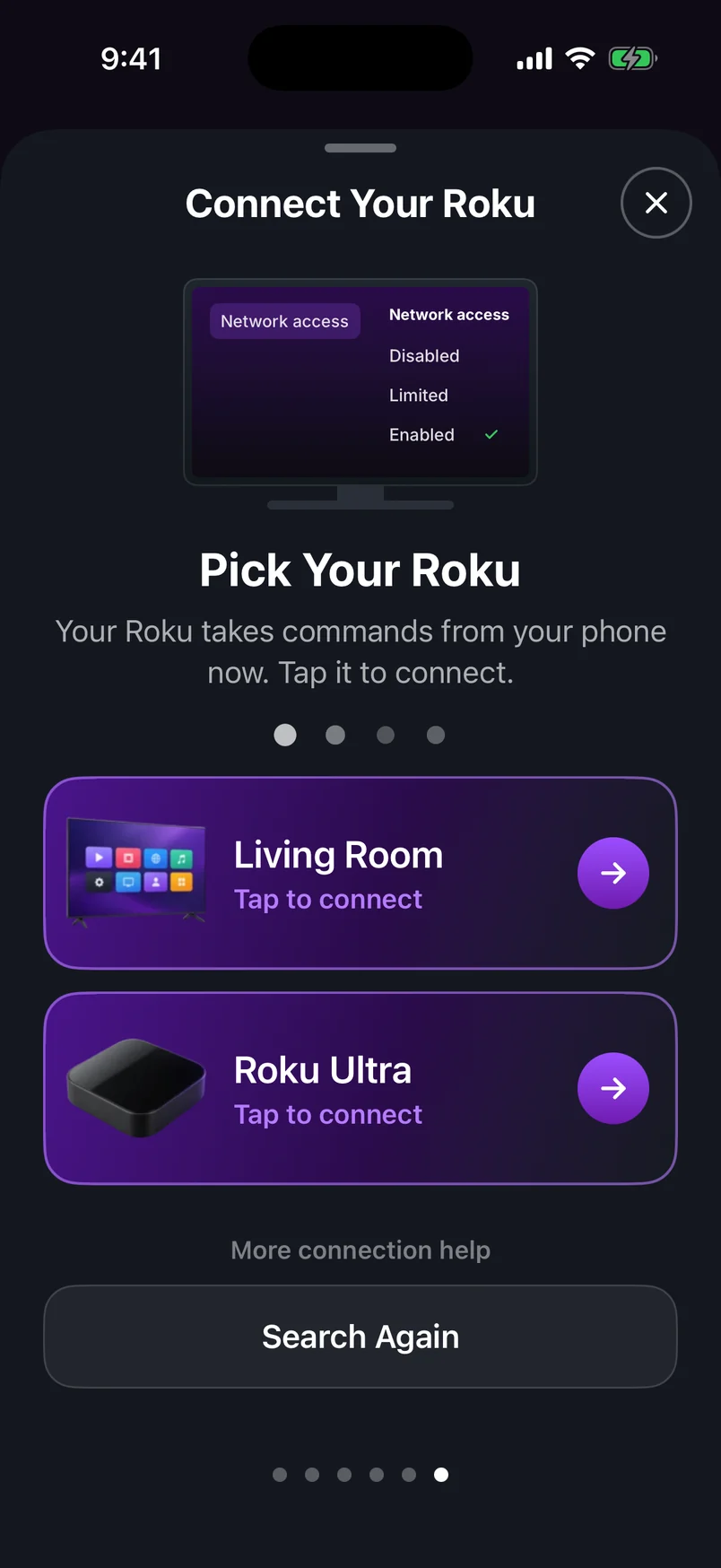
Choose a step, use the arrows, or swipe the phone. Play to advance automatically.
Step 1 of 6: Open Settings
Step 2: connect your phone
Put your phone on the same Wi-Fi as the Roku — check the network name under SettingsNetworkAbout on the Roku. Open the remote app and allow the “local network” (iPhone) or “nearby devices” (Android) permission when asked; without it the app can't see the TV. Then tap your Roku:
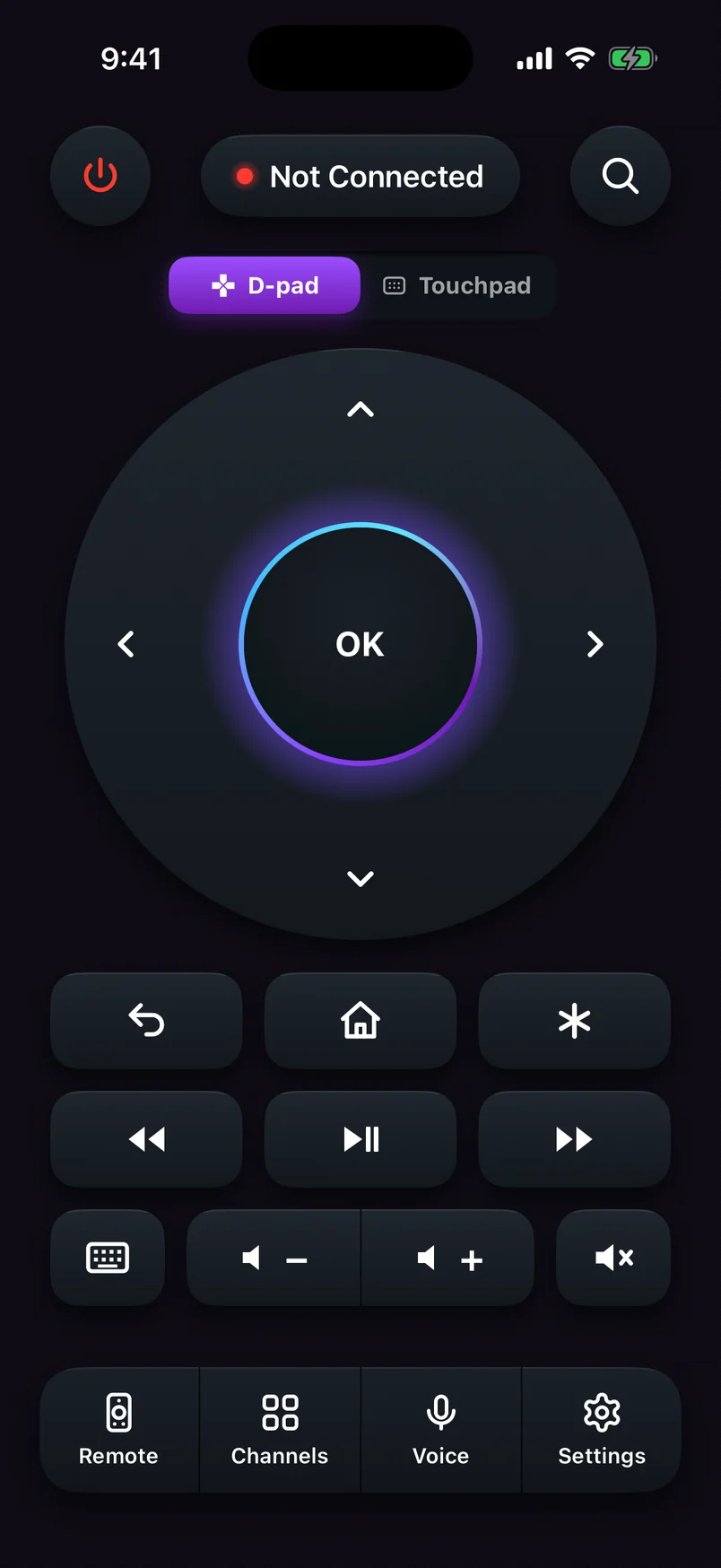
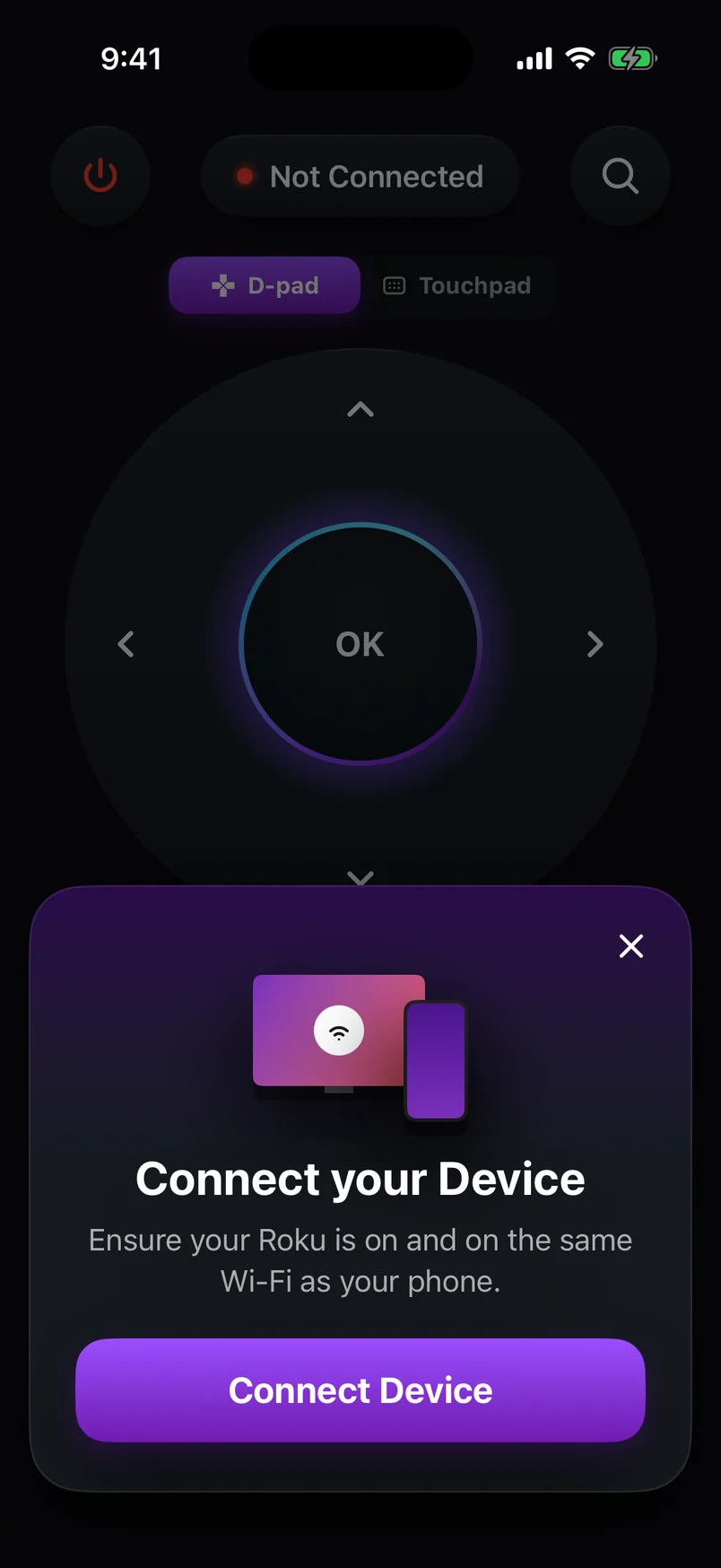
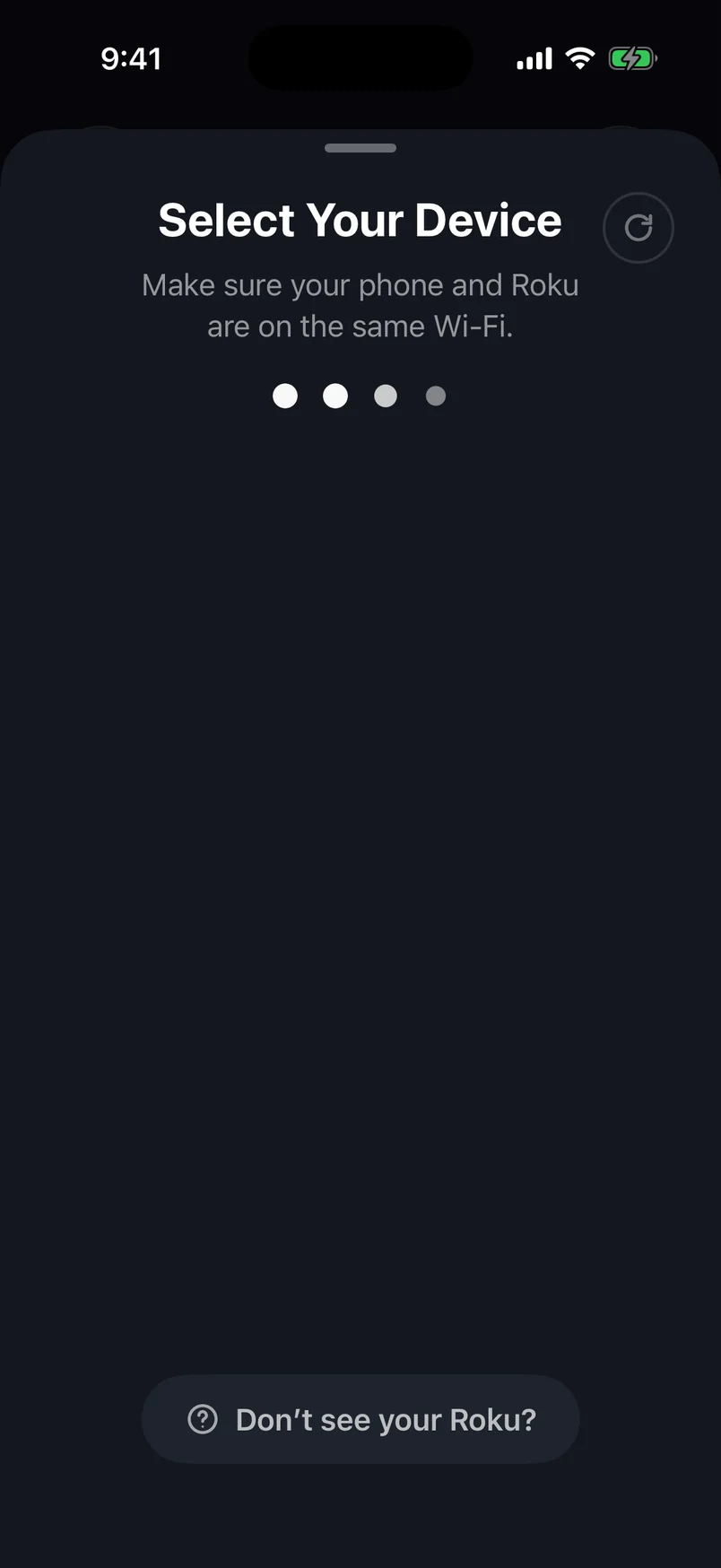
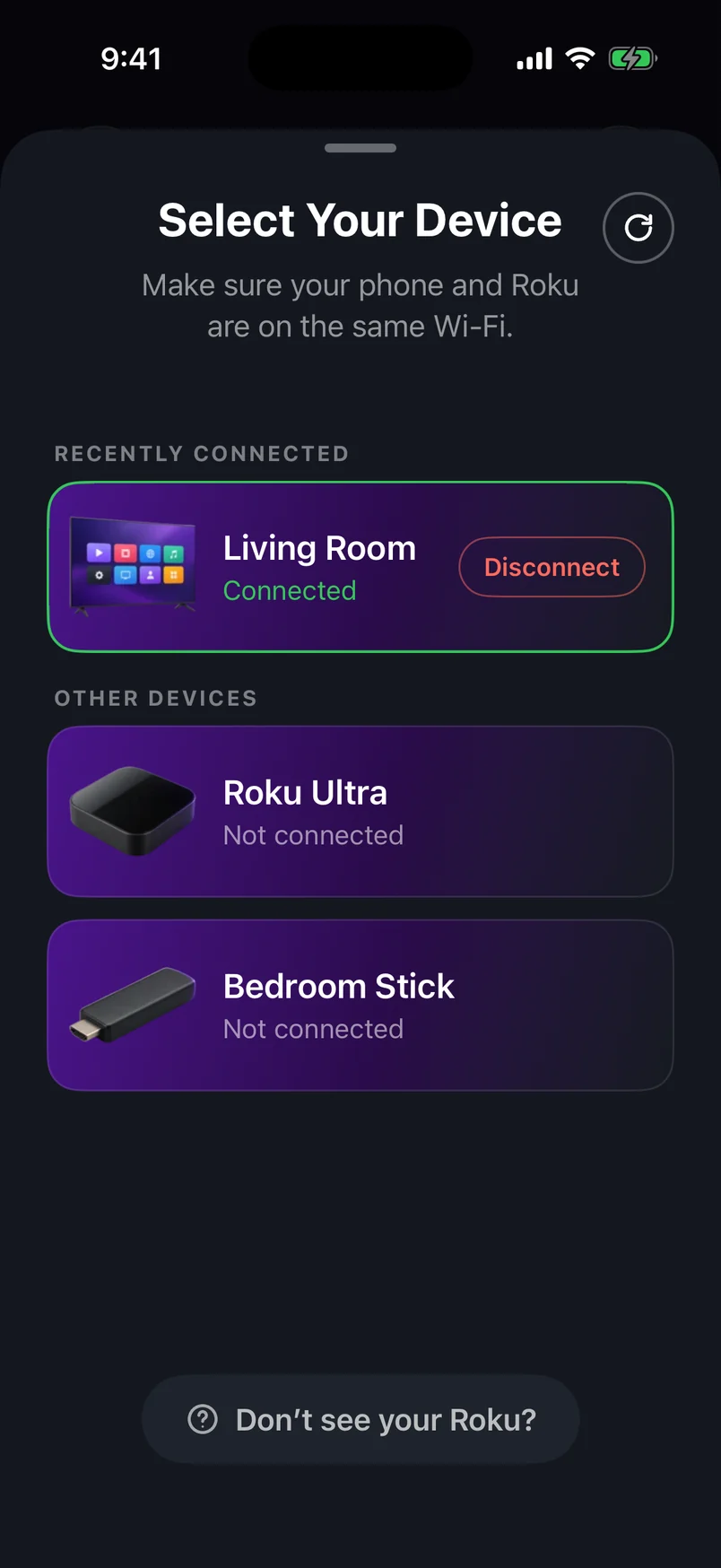
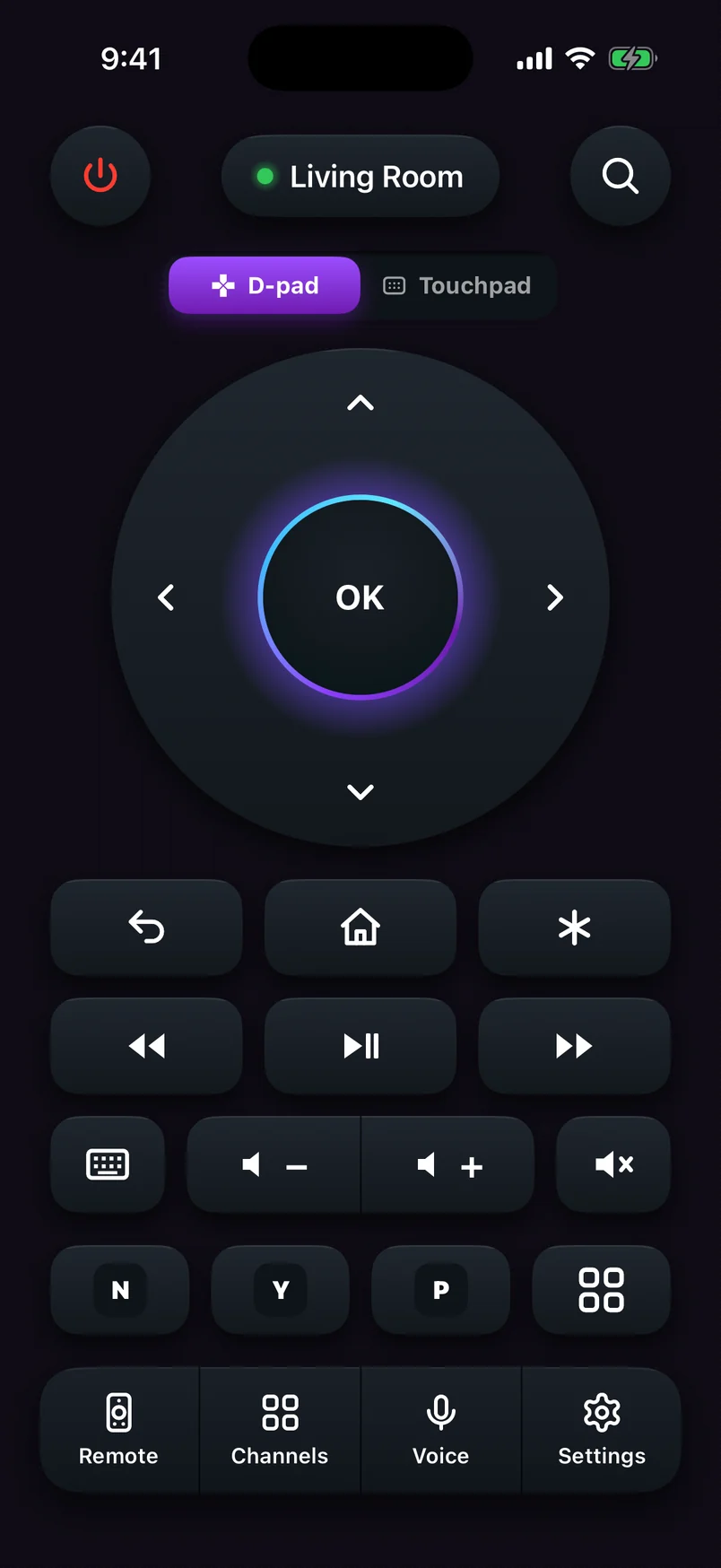
Choose a step, use the arrows, or swipe the phone. Play to advance automatically.
Step 1 of 5: Open the remote app
What you can do from your phone
| Feature | What it does |
|---|---|
| D-pad or touchpad | Arrows and OK, or swipe to move and tap to select |
| Playback | Play/pause, rewind, fast-forward and instant replay |
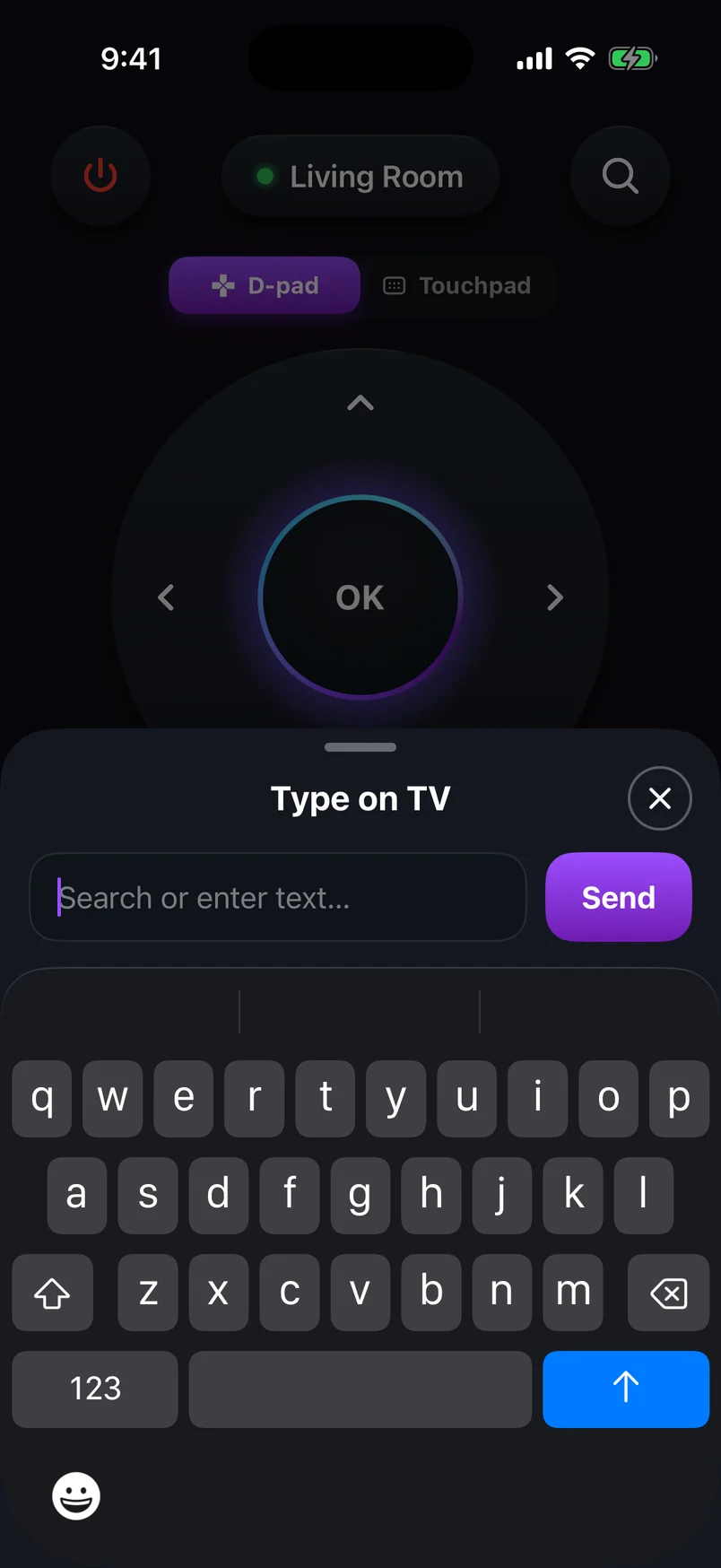
| Keyboard | Type searches, emails and passwords with your phone's keyboard |
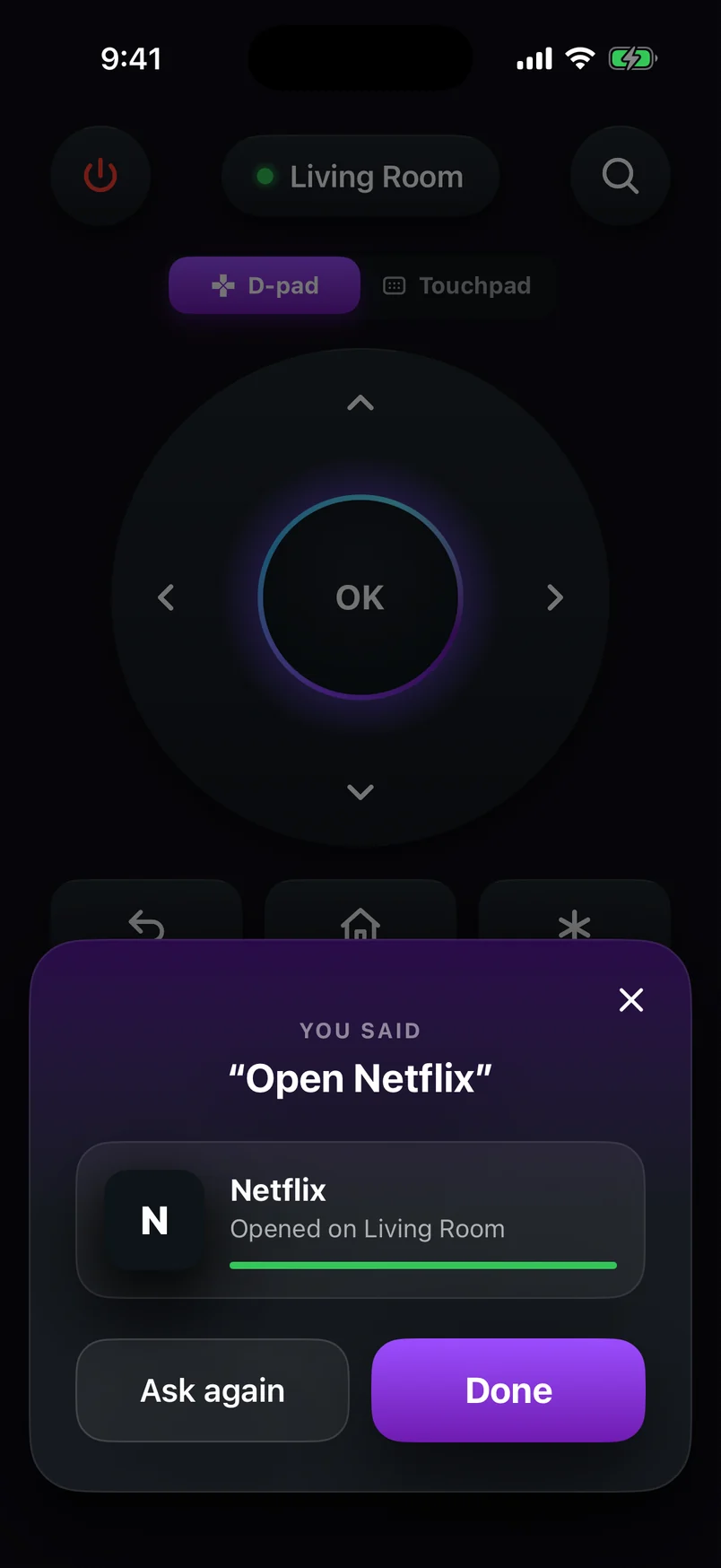
| Voice | Say “Open YouTube”, “Volume up” or “Go home” |
| Channels | Open your installed channels in one tap |
| Volume & power | Built in on Roku TVs; on sticks and boxes it depends on your TV |
Volume and power work differently on a Roku TV and a Roku stick — here's why.
Controlling more than one Roku
If you have a Roku in the living room and another in the bedroom, the app lists both. Name them on the Roku itself (SettingsSystemAbout or the device name in Roku's settings) so you can tell them apart, then switch between them from the device picker.
If your Roku doesn't show up
Check the network first
Nine times out of ten it's the network: a guest network, a VPN on the phone, or a router that keeps 2.4 GHz and 5 GHz devices apart. Put both devices on the same main network and search again.
Connect by IP address
Find the Roku's IP address in SettingsNetworkAbout and enter it in the app's manual connection option.