Compatibility

Screen mirroring to a Roku Ultra: the smoothest setup

The Roku Ultra is the best Roku for mirroring a phone. How to set it up, why Ethernet helps, and the settings that give the lowest delay and the sharpest picture.

RRemote Cast Labs Team · · 5 min read
In this article

Why the Ultra is the best Roku for mirroring

Roku Ultra (2024)Typical stick
ProcessorRoku's fastest playerEntry-level
Wi-FiWi-Fi 6, external placementBehind the TV
EthernetBuilt inNo
RemoteVoice Remote Pro: hands-free voice, backlit keys, lost-remote finderVoice remote

Mirroring is a live video stream, so it rewards a fast decoder and a clean network connection. The Ultra sits on your shelf rather than behind the TV, and with Ethernet it doesn't compete with your phone for Wi-Fi at all.

How to mirror Android to a Roku Ultra
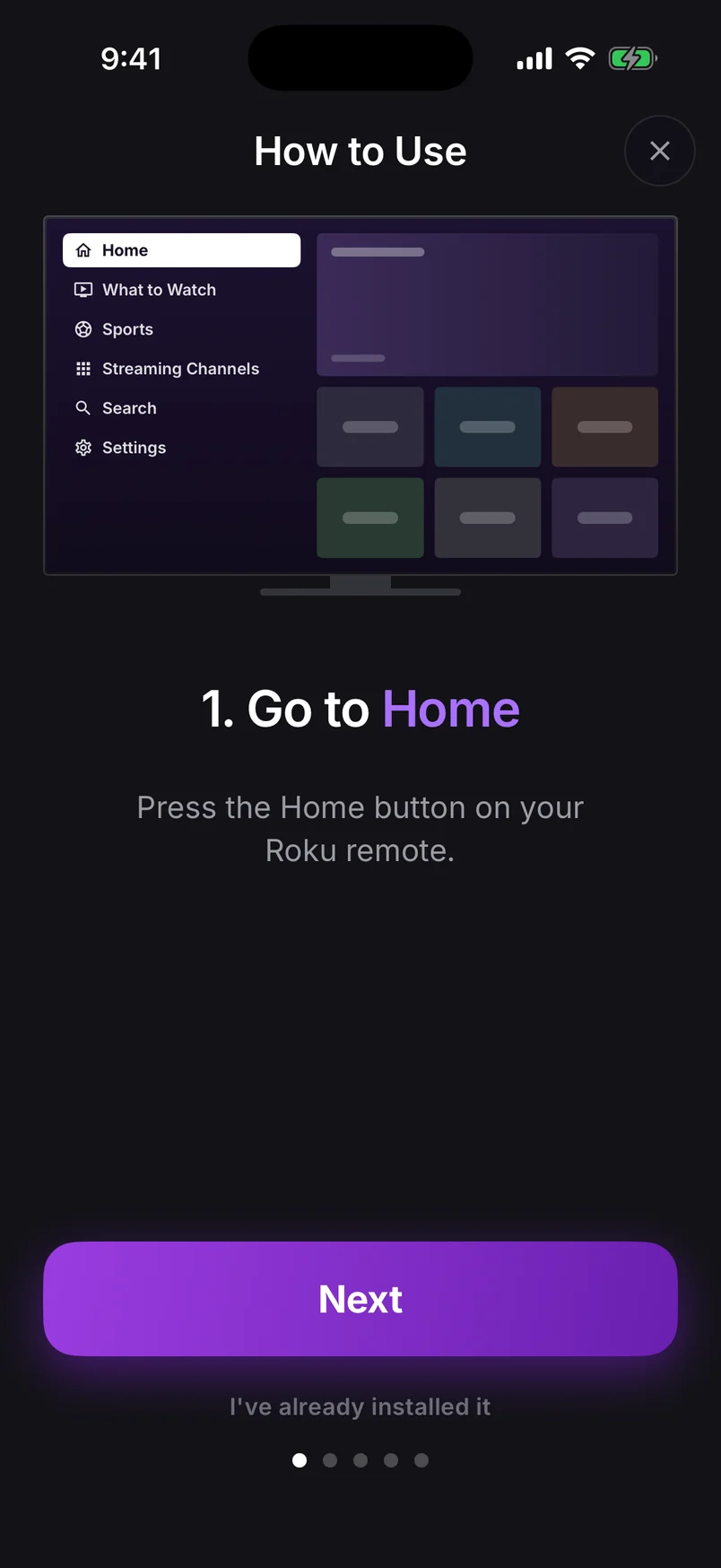
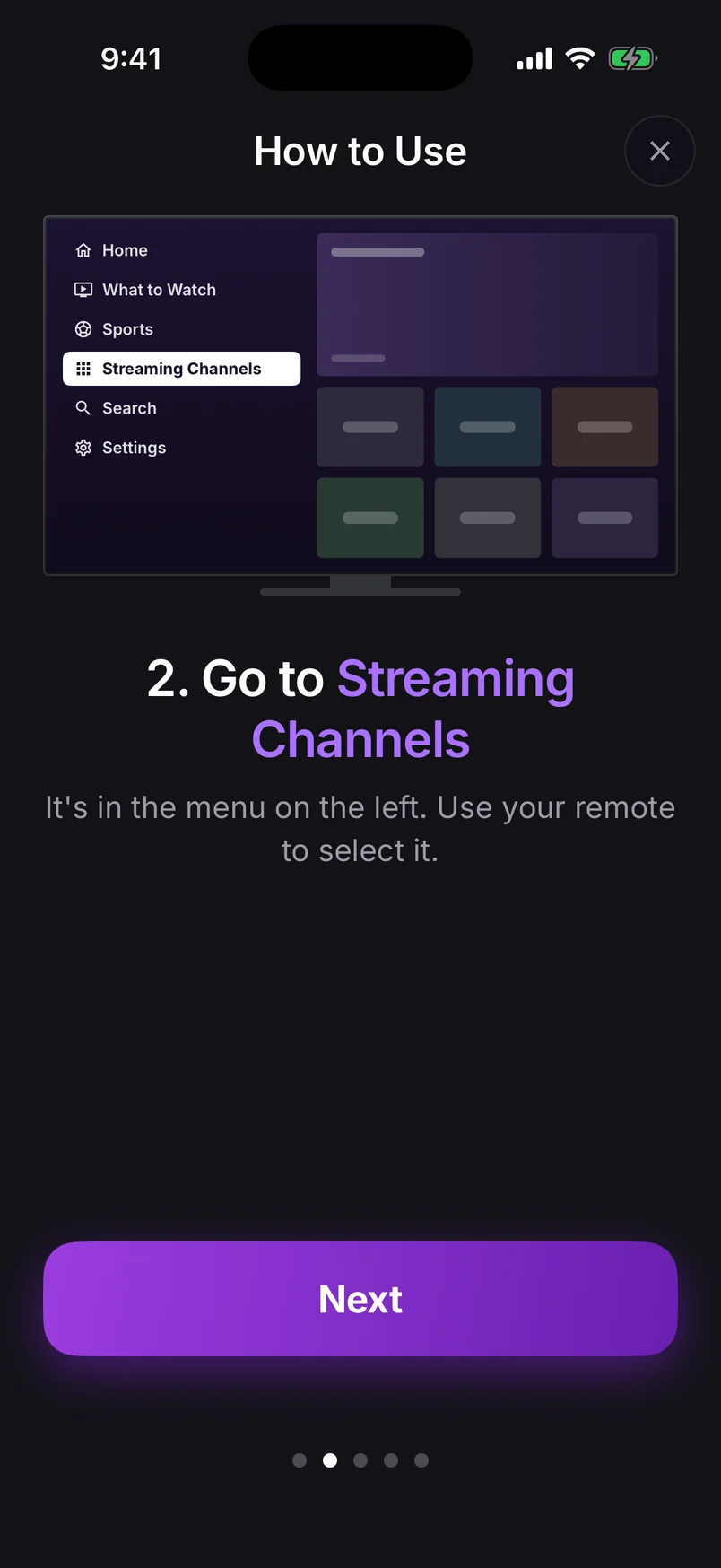
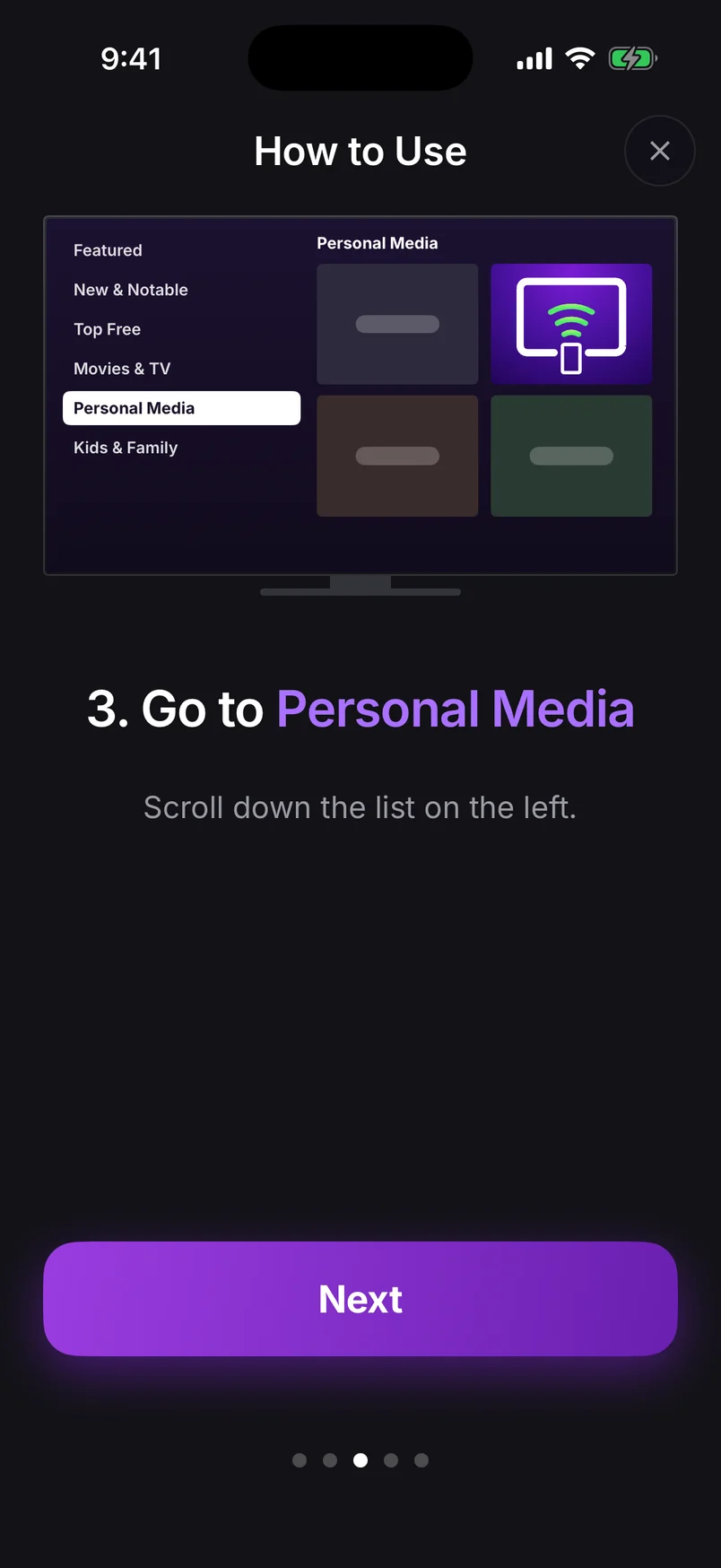
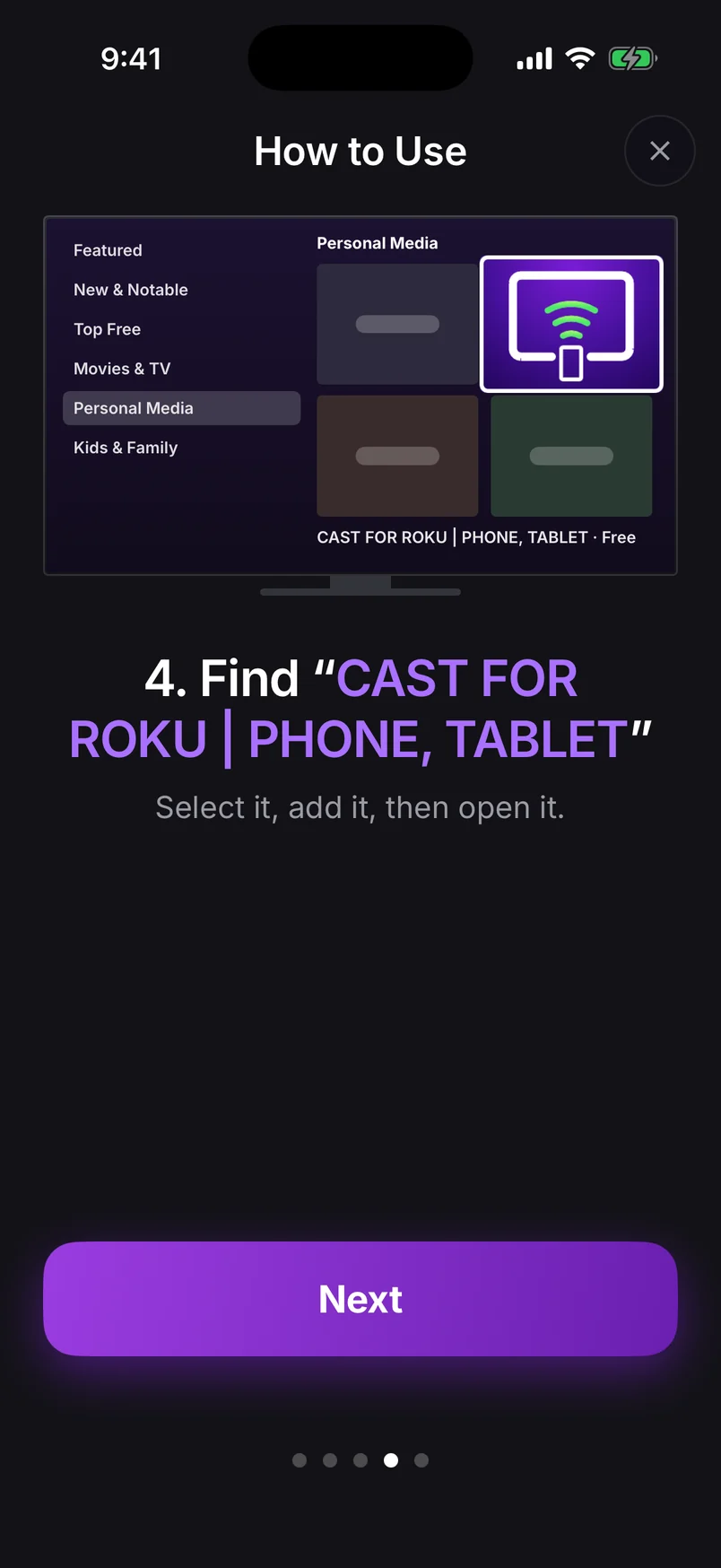
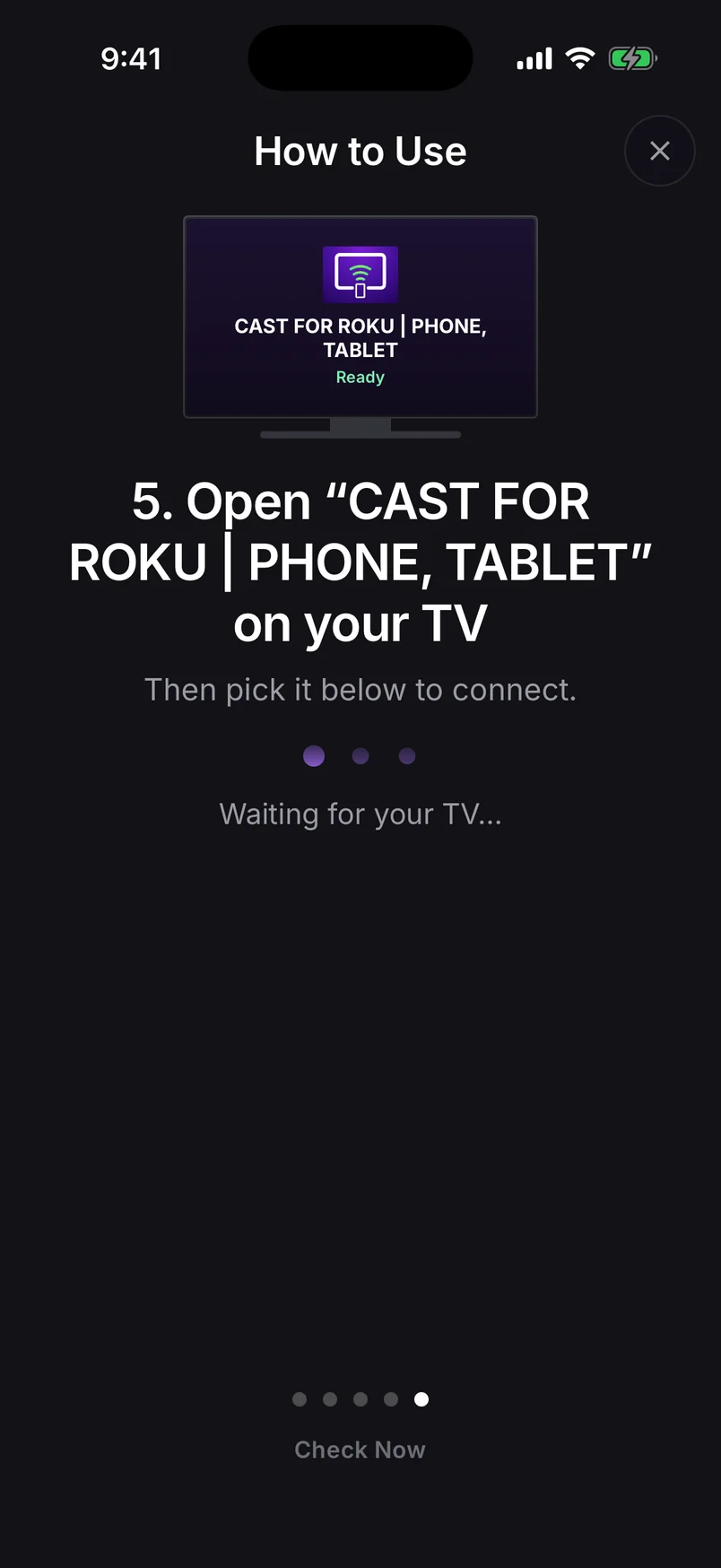
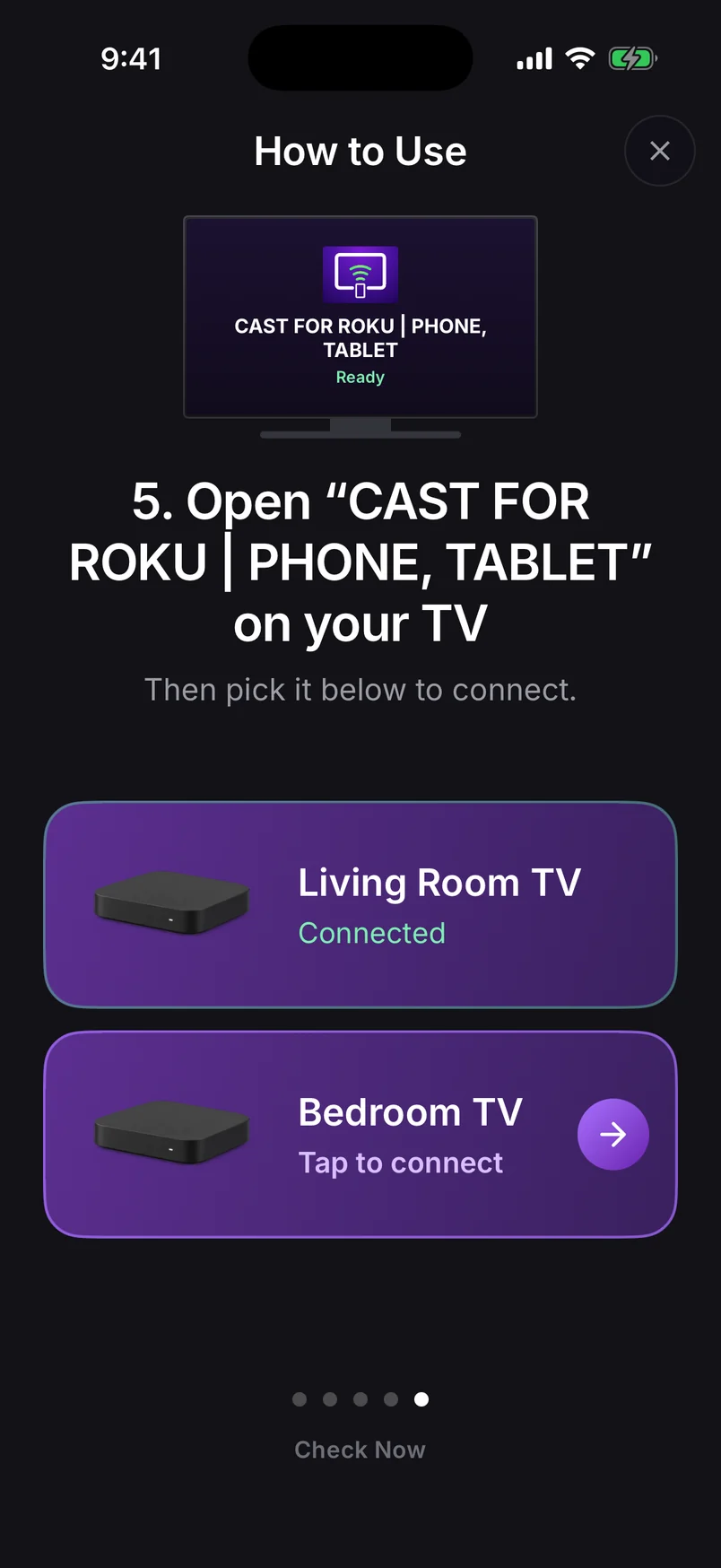
How to Use, step 1: press the Home button on your Roku remote
Step 1 of 10

Choose a step, use the arrows, or swipe the phone. Play to advance automatically.

Step 1 of 10: Press Home on your Roku remote

Full walkthrough: how to screen mirror Android to a Roku TV.

Your phone has Smart View or Wireless display? The Ultra's built-in mirroring works too: turn on SettingsSystemScreen mirroring and pick the Ultra from your phone's cast menu.

Plug in Ethernet

This is the single biggest upgrade for mirroring. Run a cable from your router to the Ultra's Ethernet port, then choose SettingsNetworkSet up connectionWired. Your phone stays on Wi-Fi — that's fine, the two still talk across your home network.

Same network, not same connection typeA wired Roku and a phone on Wi-Fi work together as long as both are on the same router. They only fail to see each other if the phone is on a guest network or the router isolates wireless devices.

Best settings for mirroring

  • Instant Video for apps, games and presentations — the lowest delay.
  • Screen + Sound for videos and music — sound plays through your TV or soundbar (Android 10+).
  • Turn your phone sideways for video so it fills the screen.
  • For photos and home videos, use Cast Photos and Cast Videos — the Ultra plays the original file at full quality.

Wondering about 4K? Mirroring runs at up to 1080p even on the Ultra — here's why, and how to get true 4K.

Lost the Ultra's remote?

Most Ultras have a lost-remote finder button on the player itself: press it and a compatible remote plays a sound. Until you find it, your phone works as a full remote — see how to control your Roku without a remote.
Frequently asked questions

Does Roku Ultra support screen mirroring?

Yes. Every Roku Ultra supports Roku's built-in mirroring for Miracast-capable Android phones, and all of them work with our screen mirroring app, which also supports Pixel phones.

Should I connect my Roku Ultra with Ethernet for screen mirroring?

If you can, yes. With our app the picture travels over your home network, so a wired Roku leaves the Wi-Fi to your phone and gives the steadiest picture with the lowest delay.

Which Roku Ultra do I have?

Check Settings › System › About. The 2024 Roku Ultra is model 4850; earlier versions include the 4802, 4800, 4670, 4660 and 4640.

Remote Cast Labs is an independent developer and is not affiliated with, endorsed or sponsored by Roku, Inc. Roku, Roku TV, Roku Express, Roku Streaming Stick, Roku Ultra and Roku Streambar are trademarks of Roku, Inc. Other product names belong to their owners.

Roku Screen Mirroring
4.7 · Free on Android & iOS

Cast your screen, photos and videos to any Roku TV.

  • Works with every Roku TV and Roku player — no Miracast needed
  • Mirror your whole screen, with sound on Android 10+
  • Cast photos, videos, YouTube and web video
  • Finds your TV by itself — no codes to type
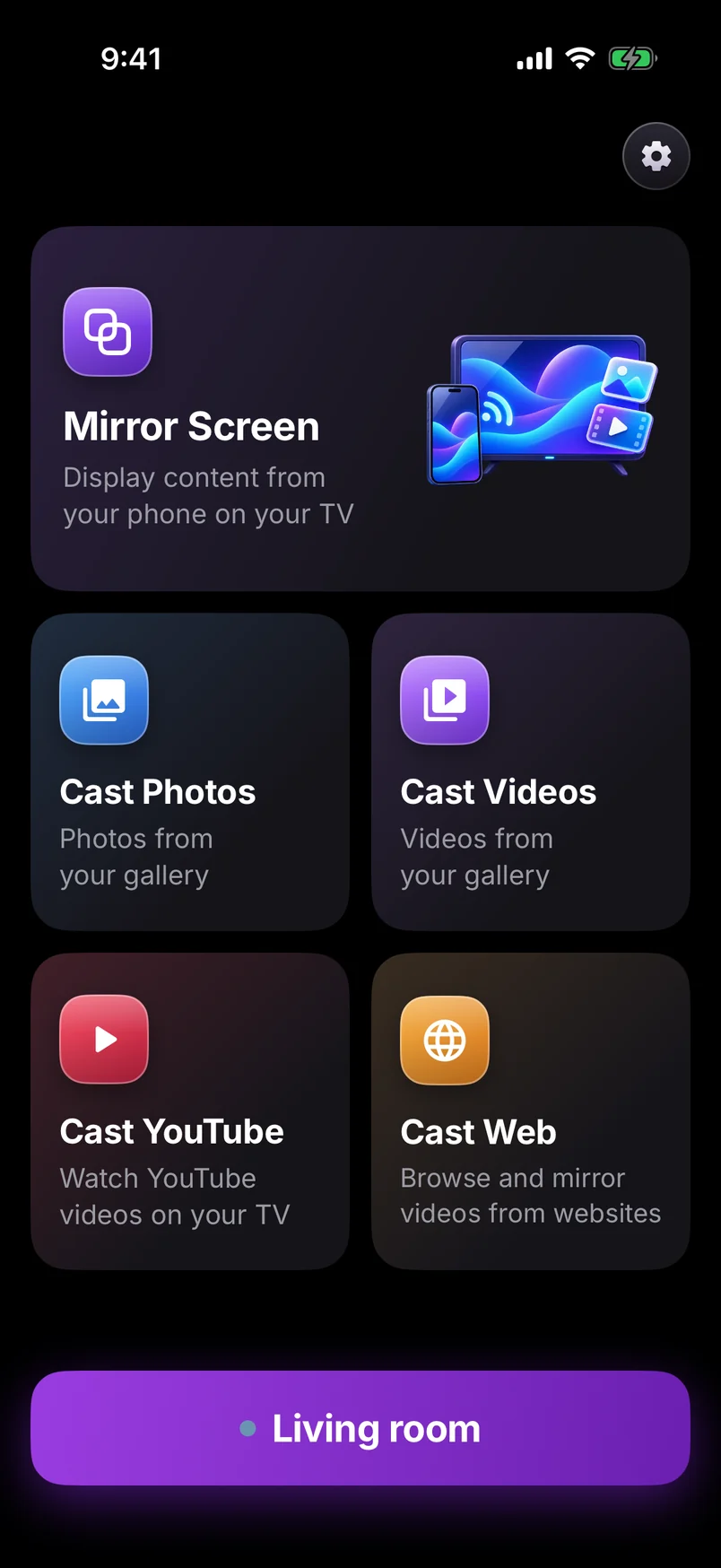
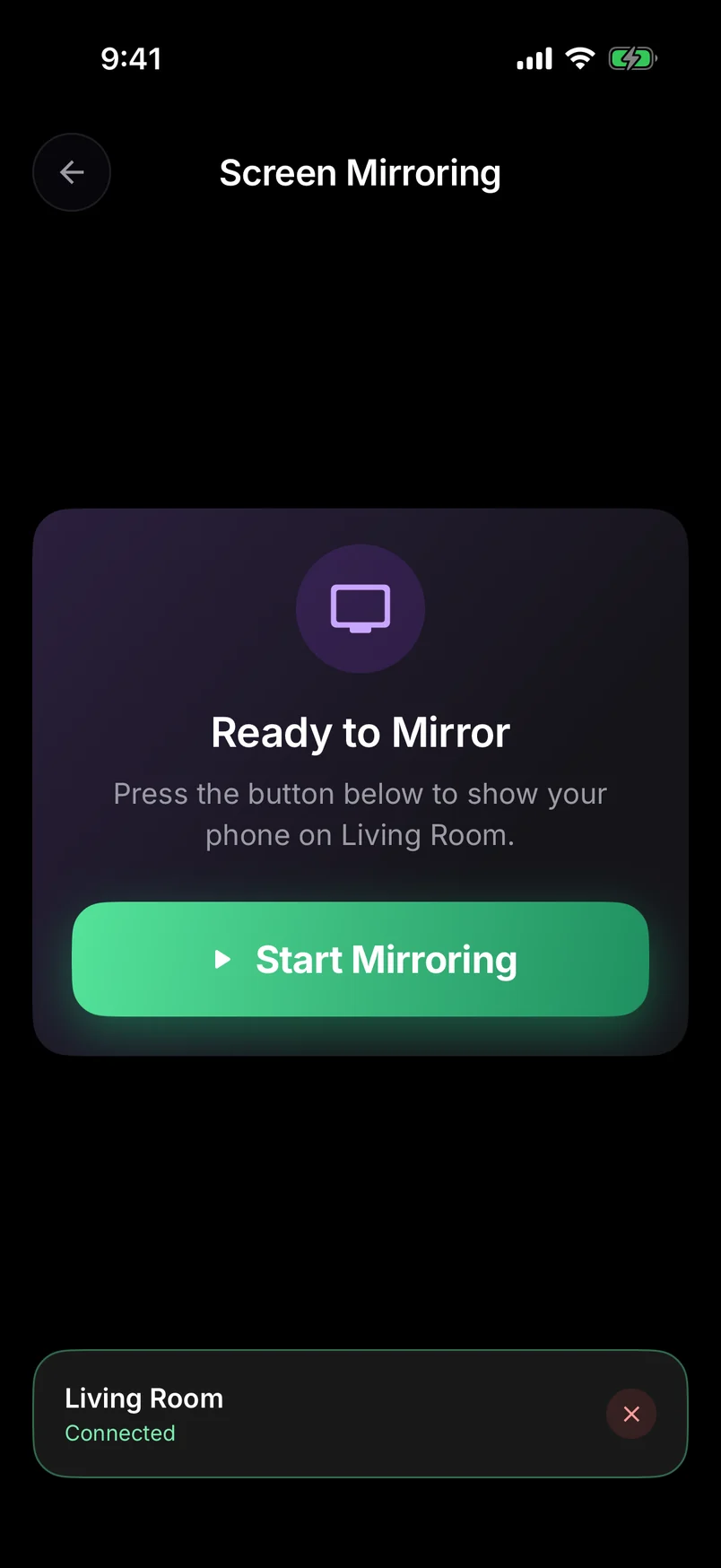
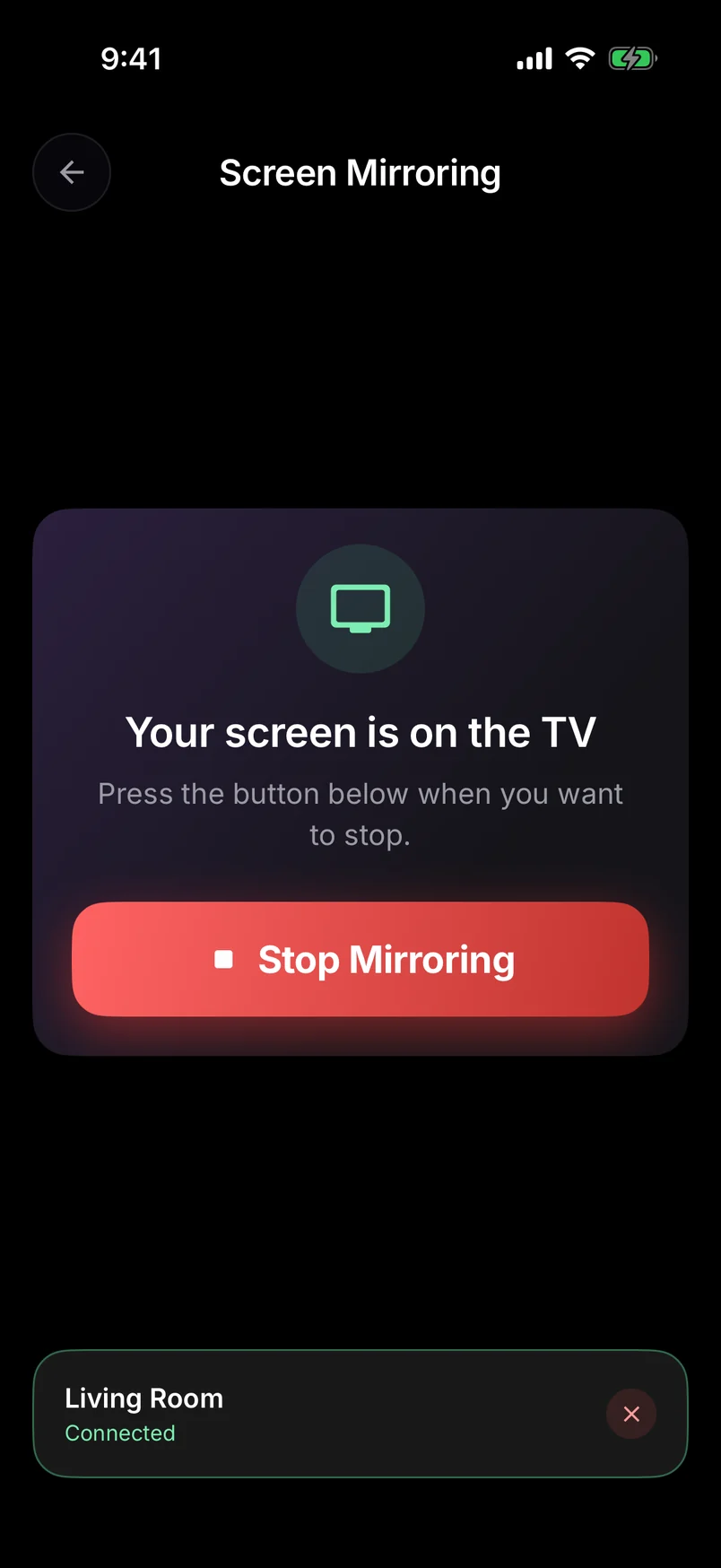
Screen mirroring app home connected to the Living room TV
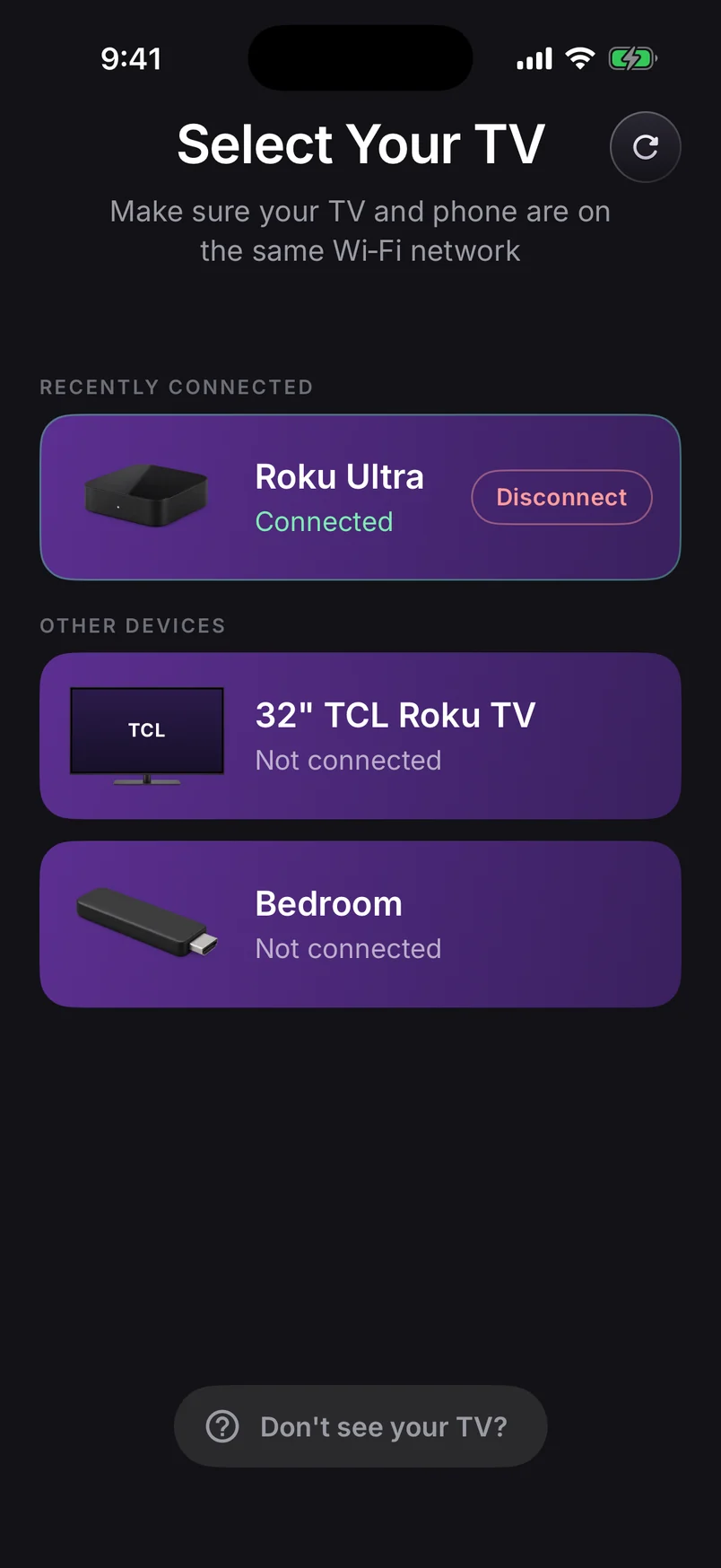
Select Your TV: a Roku Ultra connected, with a 32-inch TCL Roku TV and a Bedroom stick on the same Wi-Fi
All articles →