Guide

Can you screen mirror a Google Pixel to a Roku? Yes — here's how

Pixel phones can't use Roku's built-in screen mirroring, which is why your Roku never shows up. Here's why, and the simple way to mirror a Pixel to Roku anyway.

RRemote Cast Labs Team · · 5 min read
In this article

It's one of the most common frustrations we hear: a brand-new Pixel, a Roku TV, and a Cast button that just spins. Nothing is broken — the two simply speak different languages.

Why your Pixel can't see your Roku

Roku's built-in mirroring receiver uses Miracast, a standard that lets a phone stream its screen straight to a TV. Samsung (Smart View), Motorola and many other phone makers include it. Google removed it from Nexus and Pixel phones years ago in favor of Google Cast — which is what Chromecast and Google TV understand, and Roku doesn't. Roku's own support pages list Google-branded phones as the exception to Android mirroring.

No setting on the Pixel or the Roku changes this. What does work is mirroring over your home Wi-Fi instead.

How to mirror a Pixel to Roku
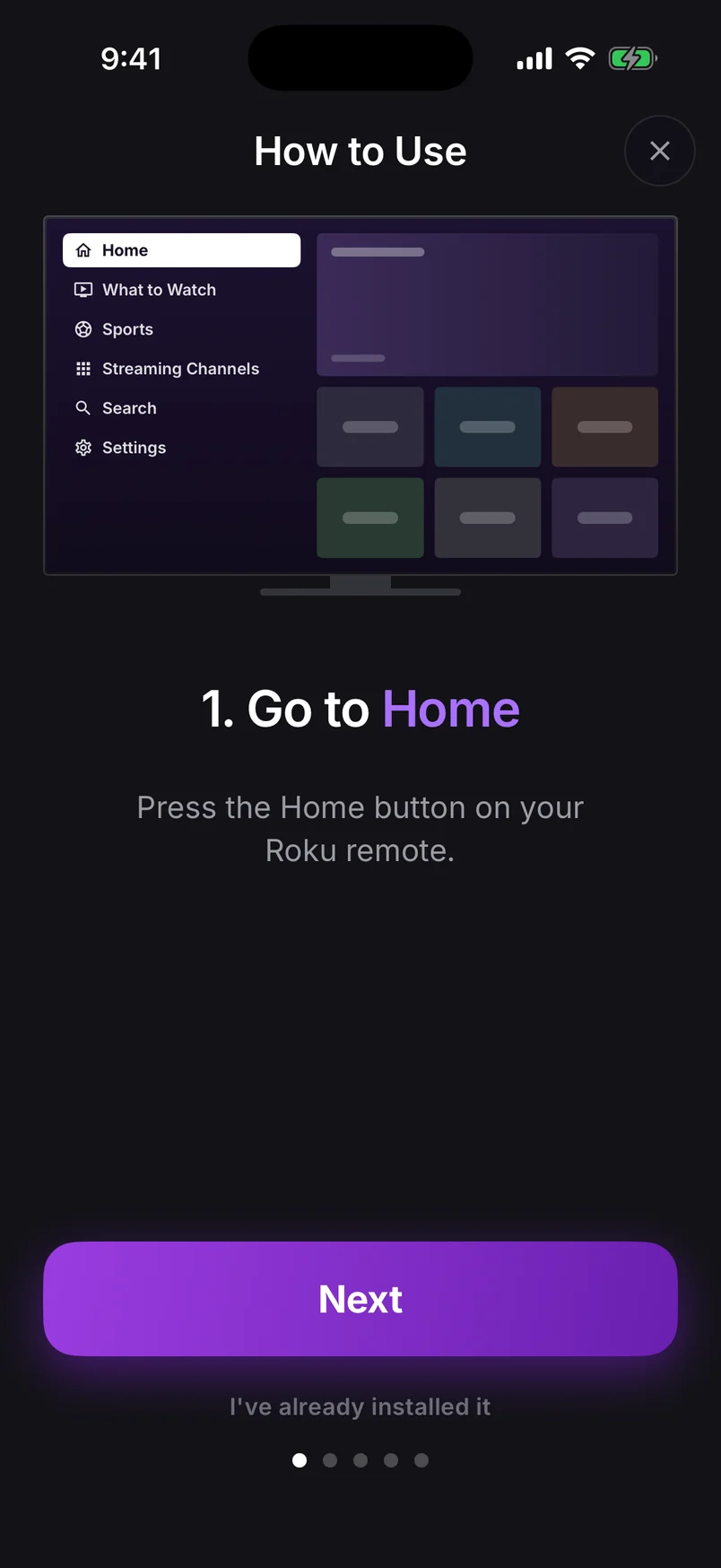
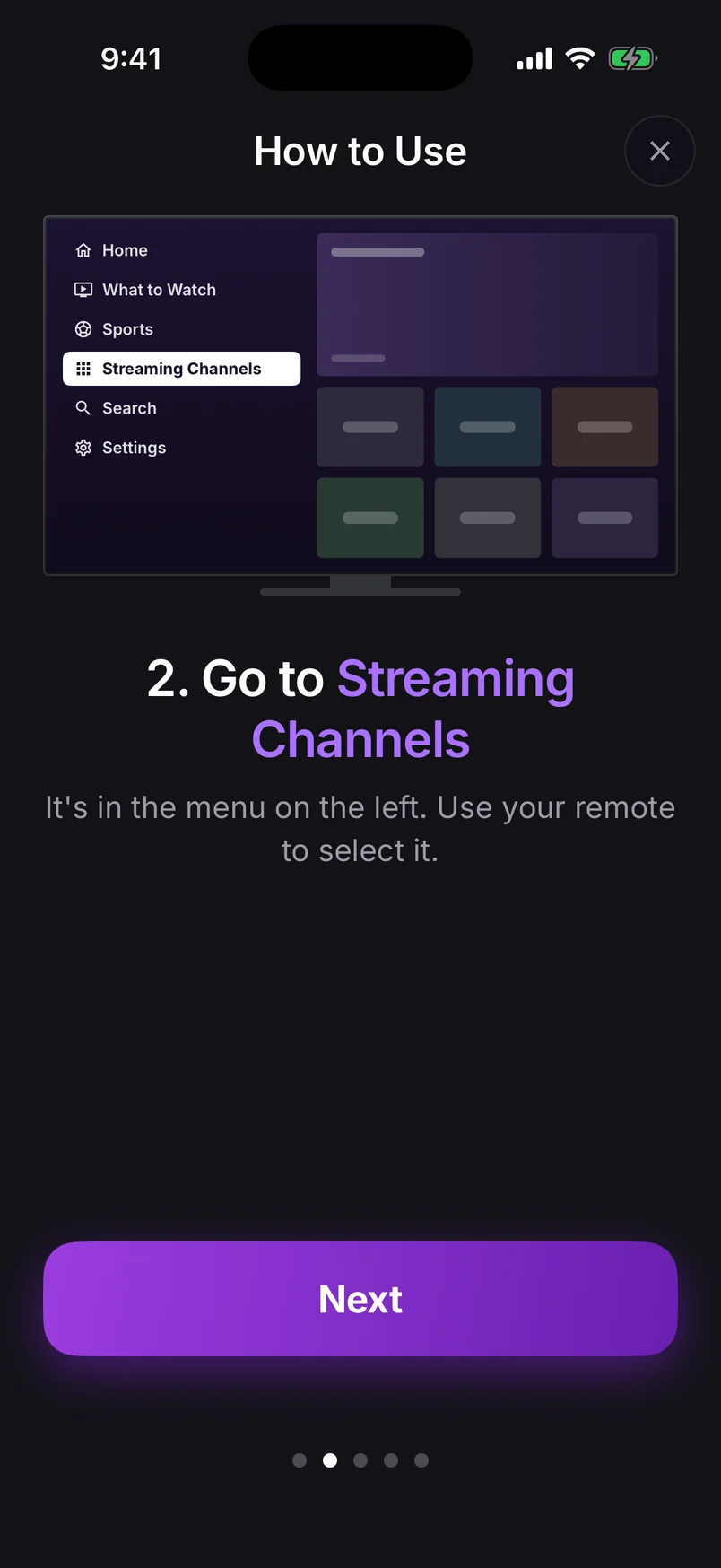
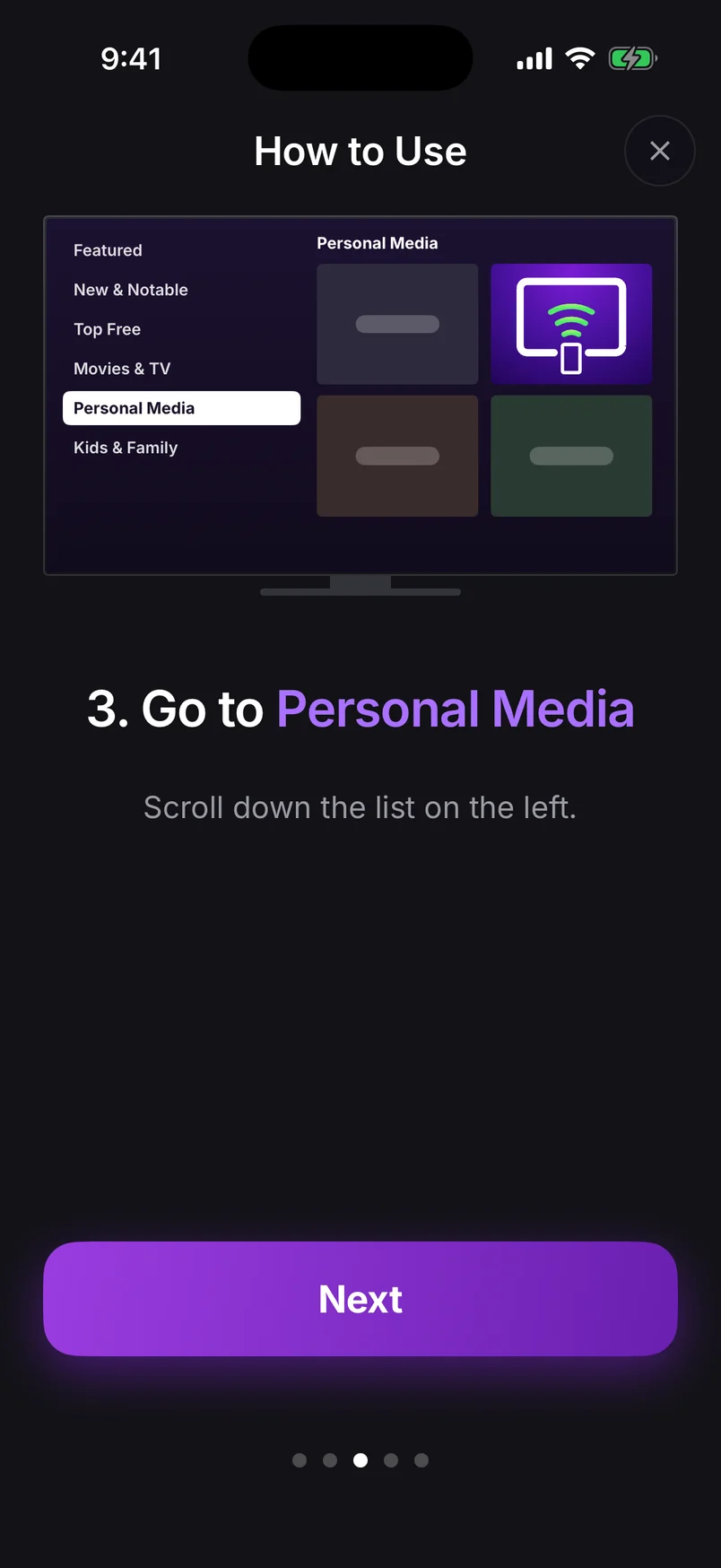
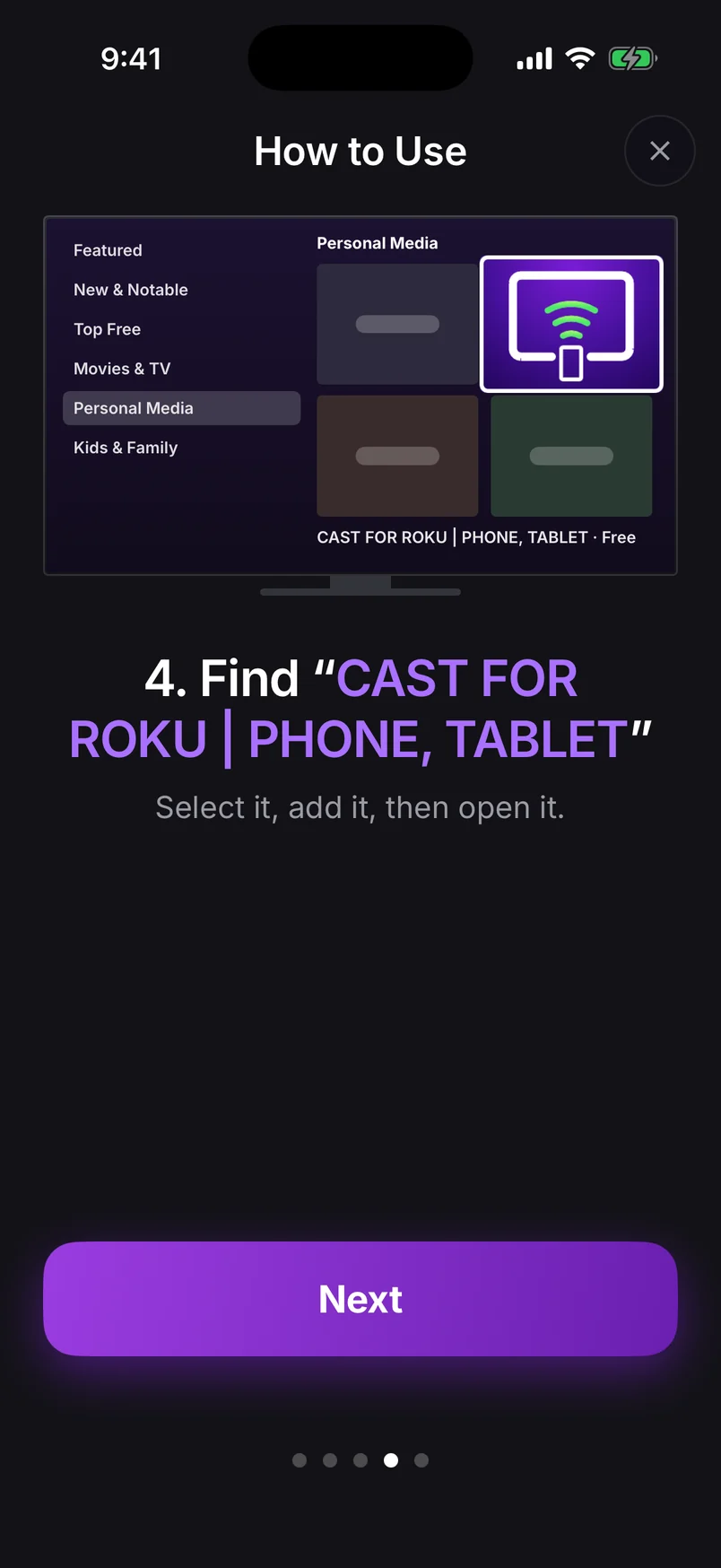
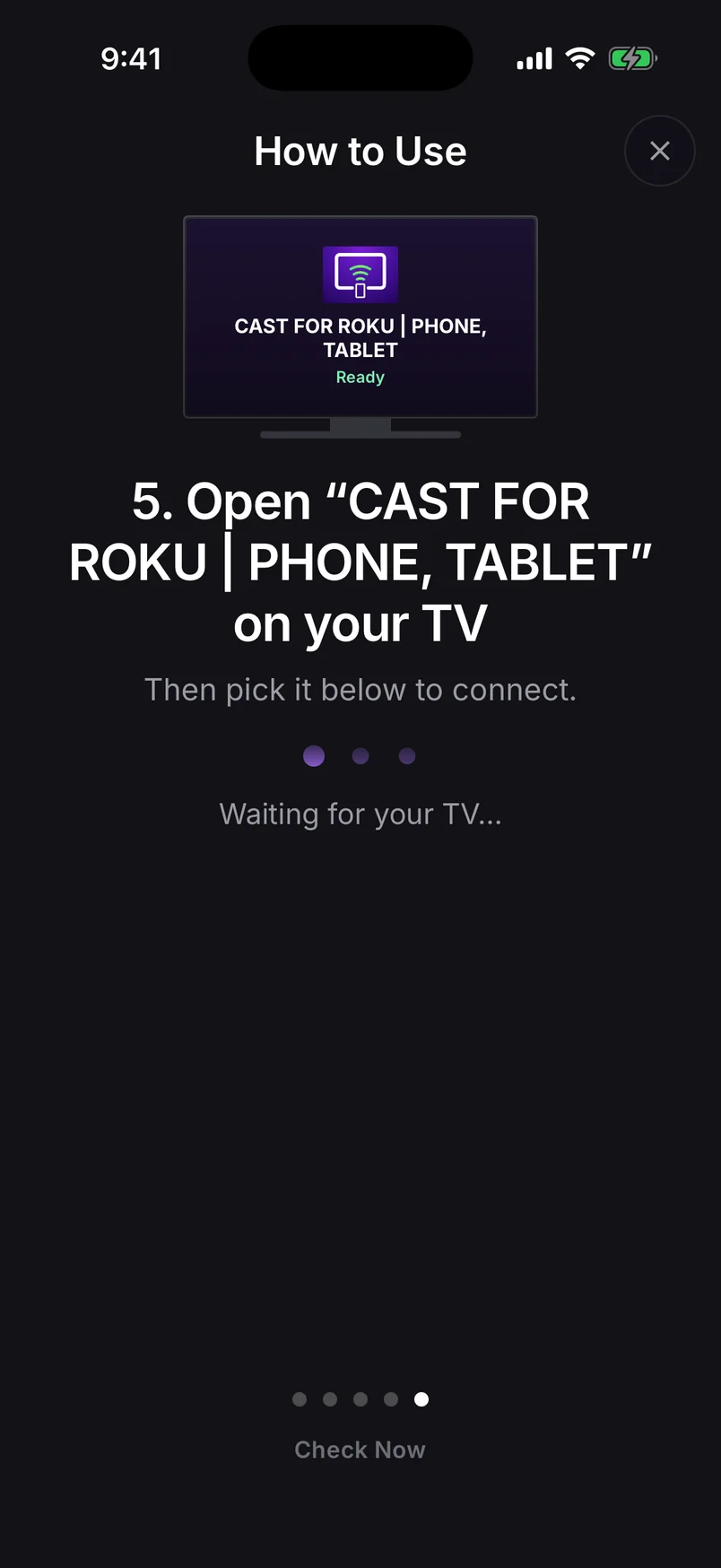
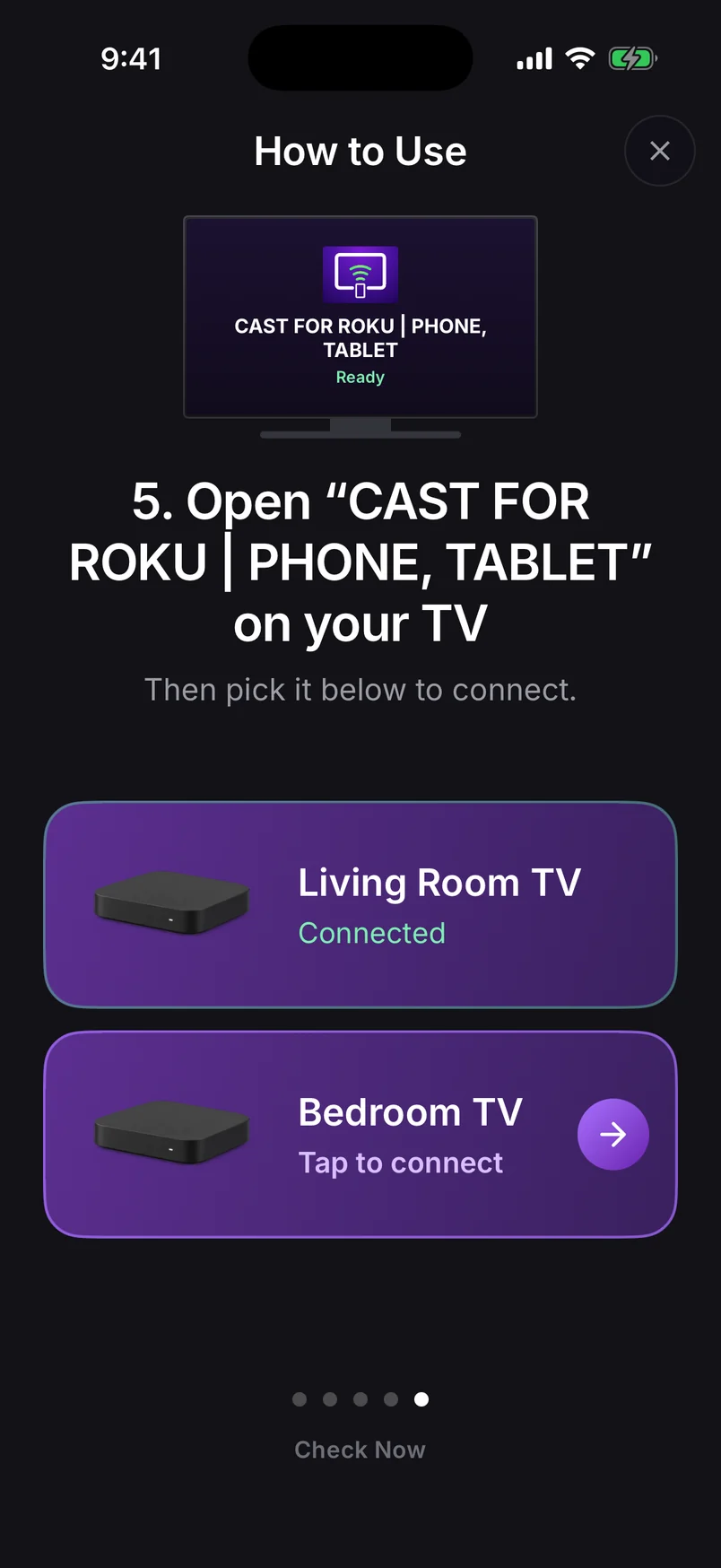
How to Use, step 1: press the Home button on your Roku remote
Step 1 of 10

Choose a step, use the arrows, or swipe the phone. Play to advance automatically.

Step 1 of 10: Press Home on your Roku remote

Full walkthrough: how to screen mirror Android to a Roku TV.

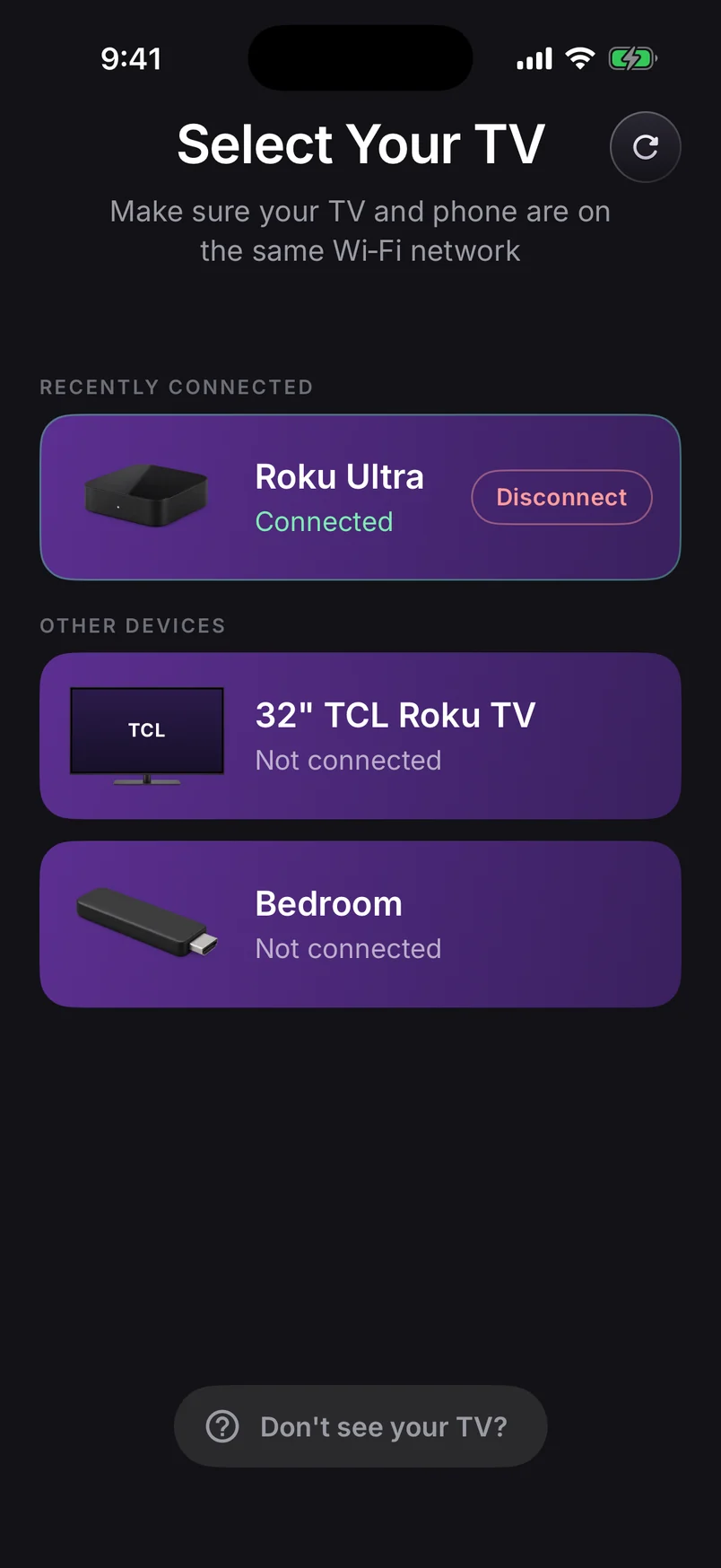
Select Your TV: a Roku Ultra connected, with a 32-inch TCL Roku TV and a Bedroom stick on the same Wi-Fi
Your Rokus, found over Wi-Fi
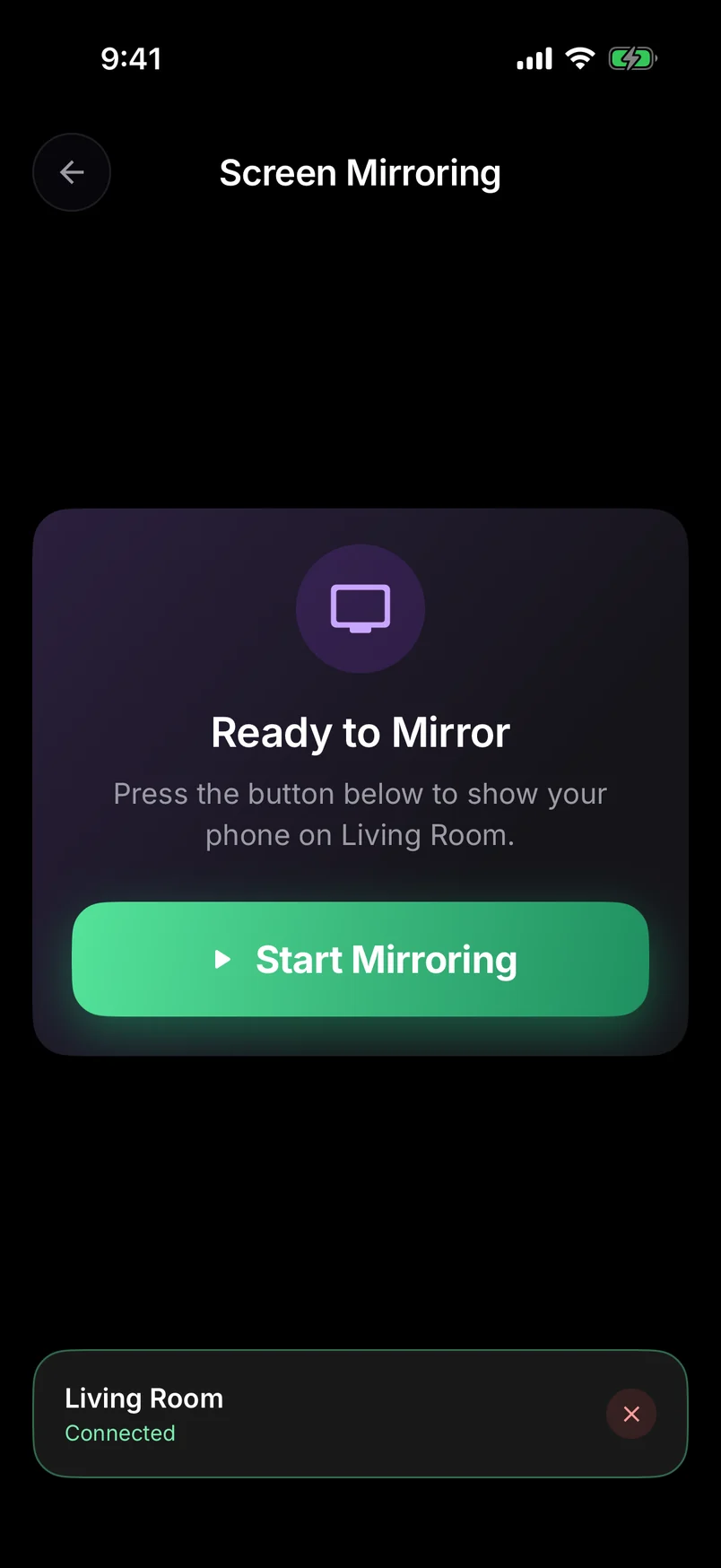
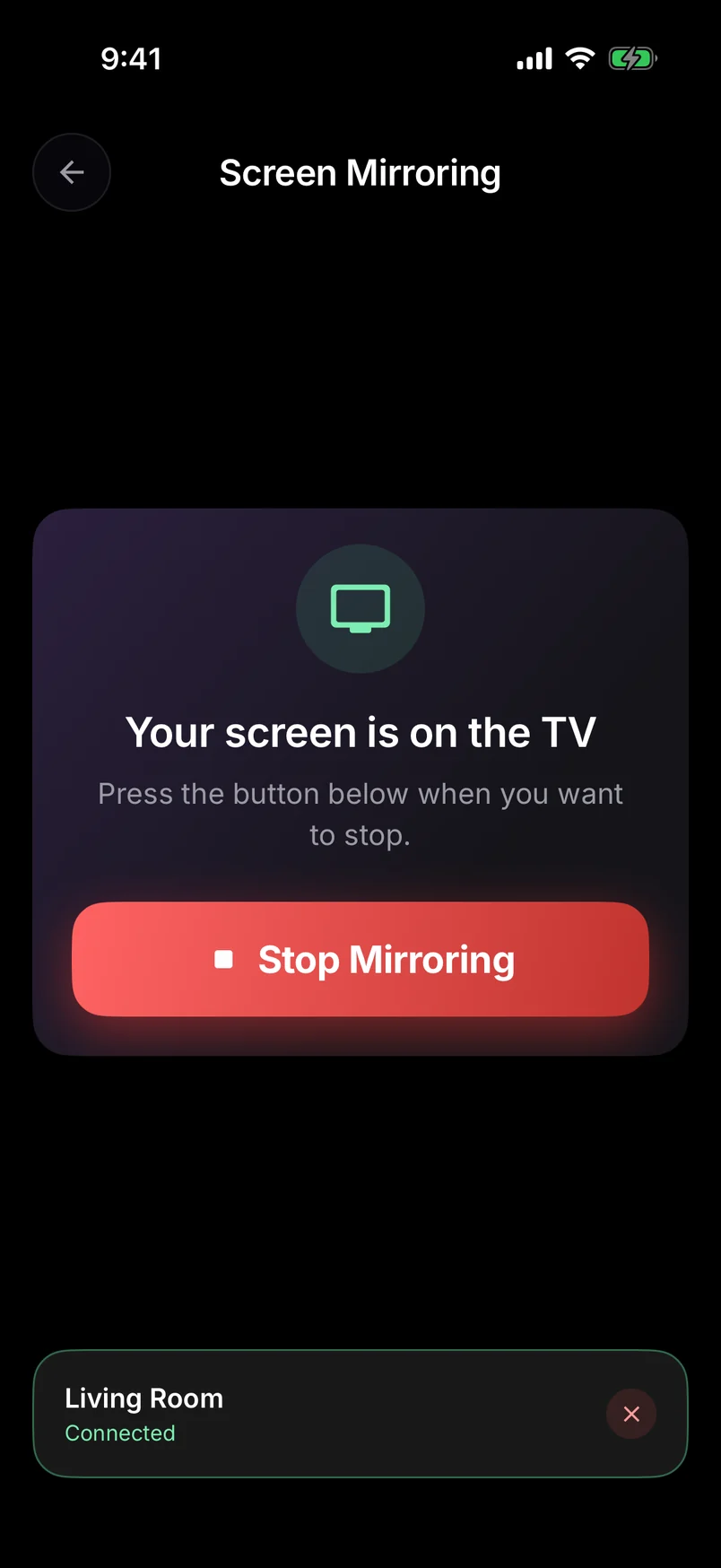
Screen Mirroring: your screen is on the TV, with a Stop Mirroring button
Your screen on the TV

When you tap Mirror Screen, the Pixel asks for permission to share your screen — that's Android's standard privacy check, and it appears each time you start.

All your options compared

OptionWorks with Roku?What you get
Pixel Screen Cast tileNoMirrors to Chromecast and Google TV only
Cast button inside YouTubeYesPlays that YouTube video on the Roku's YouTube channel
Roku's official appPartlyShares photos and videos from your phone, not your whole screen
Screen mirroring app + Roku channelYesWhole screen, with sound, plus photo, video, YouTube and web casting

Getting sound on the TV

Choose Screen + Sound and allow the audio permission when Android asks. On Android 10 and later the TV plays your phone's audio. Some apps block audio capture and stay silent on purpose — and protected streaming apps (Netflix, Disney+ and others) show a black screen when mirrored. Watch those in their own Roku channel.
Also works on other phones without MiracastSome budget and carrier phones ship without Miracast too. If your phone has no Smart View, Screen Cast or Wireless display option that finds your Roku, the same app method works. See the full Android to Roku guide.

Frequently asked questions

Why can't my Pixel find my Roku TV?

Roku's built-in screen mirroring uses Miracast, and Google removed Miracast from its Nexus and Pixel phones starting with Android 6. Pixel's Cast button only finds Google Cast devices, which Roku isn't.

Can I use the Pixel's Cast button with Roku?

Only for specific apps that support casting to Roku, such as YouTube. The Pixel's Screen Cast tile mirrors to Google Cast devices like Chromecast and Google TV, not to Roku.

Does screen mirroring work on Pixel 9 and Pixel 10?

Yes, with an app that mirrors over Wi-Fi. Our screen mirroring app works on any Pixel running Android 8.0 or later, with sound on the TV from Android 10.

Remote Cast Labs is an independent developer and is not affiliated with, endorsed or sponsored by Roku, Inc. Roku, Roku TV, Roku Express, Roku Streaming Stick, Roku Ultra and Roku Streambar are trademarks of Roku, Inc. Other product names belong to their owners.

Roku Screen Mirroring
4.7 · Free on Android & iOS

Cast your screen, photos and videos to any Roku TV.

  • Works with every Roku TV and Roku player — no Miracast needed
  • Mirror your whole screen, with sound on Android 10+
  • Cast photos, videos, YouTube and web video
  • Finds your TV by itself — no codes to type
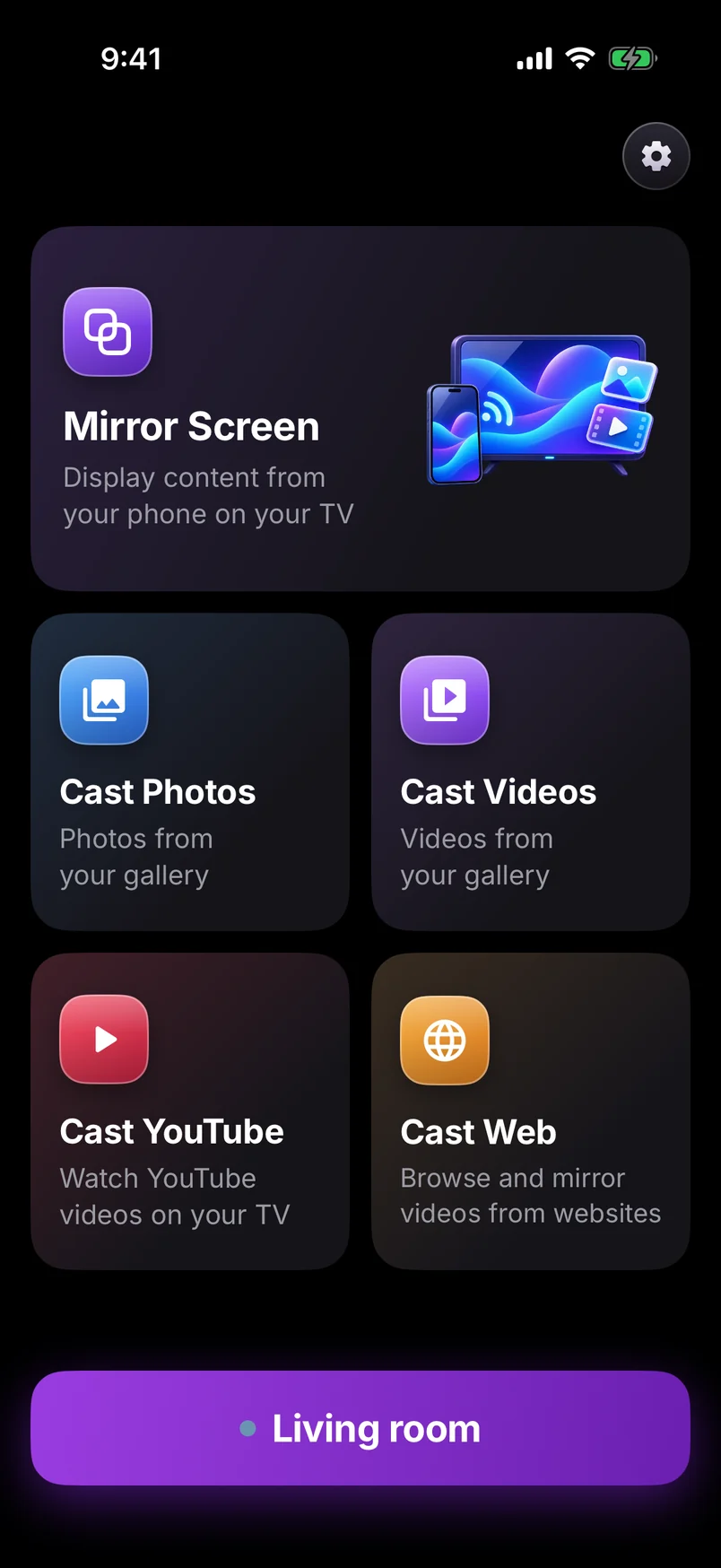
Screen mirroring app home connected to the Living room TV
Select Your TV: a Roku Ultra connected, with a 32-inch TCL Roku TV and a Bedroom stick on the same Wi-Fi
All articles →